Change a Photo Background to White, Free, No Sign-up
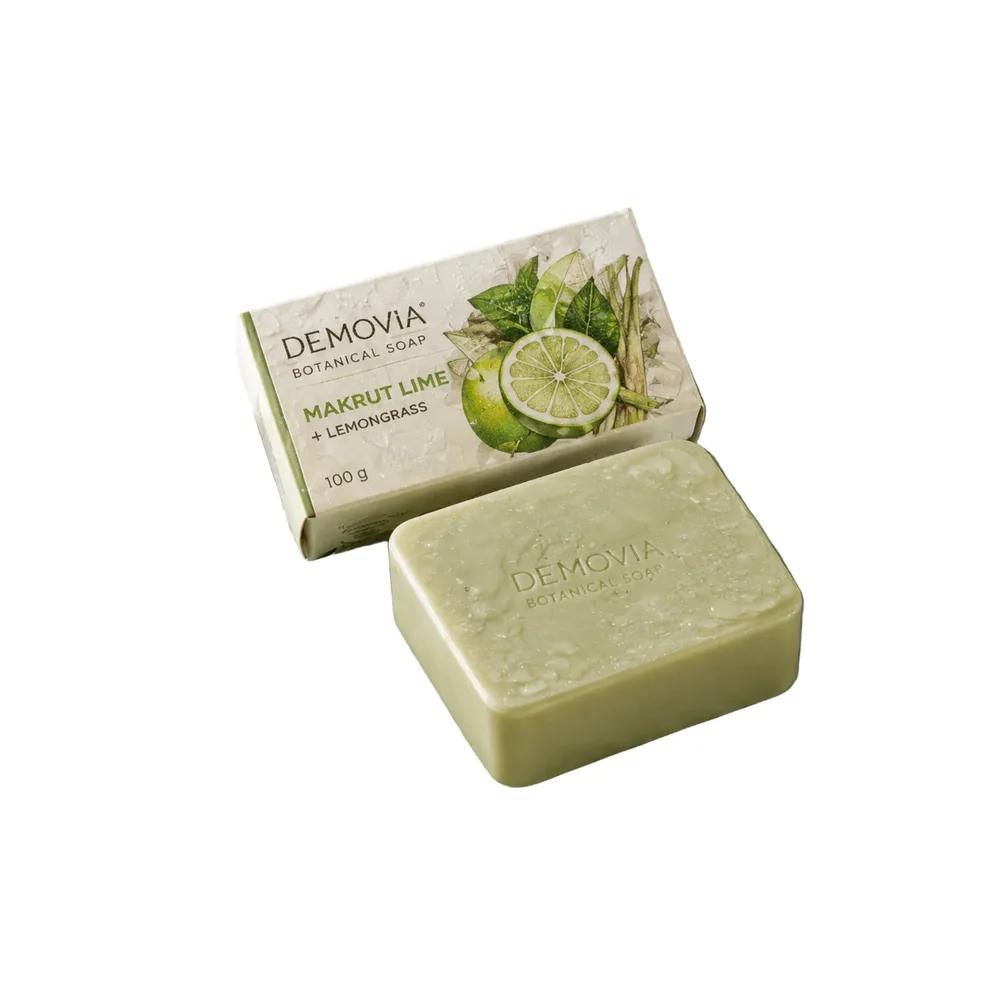
You can change a product photo's background to white on this page, free, 3 times a day, with no sign-up. Pick a JPG, PNG or WebP up to 10 MB, wait about 10 seconds, and get the product on plain white in a 2048 × 2048 pixel picture. Download it as a JPG under 2 MB (ours was 0.21 MB) or as a PNG.
For another colour, or your own picture as the background, pick it on the same page: no second cut-out and no extra free use.
The tool changes the background only. The product keeps its place and its size relative to your photo, so it is not enlarged to fill the frame, and it gets no shadow.
AI is cutting the product out, about 10 seconds...
Preview · 2048 × 2048
New background
Do Shopee and Lazada want a white background?
Shopee recommends a white background for product images, and Lazada says its square Buyer Promotion Image must have a pure white or transparent background. The table sets what each official page says beside the file this tool gives. Official pages read on 30 September 2026.
| Where | What the official page says | The file from this tool (our soap photo) |
|---|---|---|
| Shopee cover image [1] | Recommends a white background (ควรใช้พื้นหลังสีขาว). The product must fill more than half of the whole picture, and the recommended place is the middle. The cover must have no watermark, logo or text covering the product, no four-sided frame, and must not be edited so the product looks different from reality. It recommends more than 500 × 500 pixels | Plain white (the four corner pixels are pure white, RGB 255, 255, 255), no watermark, 2048 × 2048 pixels. The product is not redrawn: it uses the pixels of your photo, resized to fit the frame. How large the product is depends on your photo (see “What this tool does not do”) |
| Shopee Media Space (คลังมีเดีย) [2] | Accepts JPEG/JPG/PNG image files up to 2MB each | A JPG under 2,000,000 bytes (the tool lowers the quality until it is). The soap on white is 0.21 MB. A PNG can go over: 1.56 MB on white and 4.41 MB on the picture background we tried |
| Lazada square Buyer Promotion Image [3] | “the background must be pure white or transparent”, ratio 1:1, at least 330 × 330 pixels (1000 × 1000 recommended), jpg, jpeg or png up to 3MB, no watermarks, borders or marketing copy in the picture | Plain white, ratio 1:1, 2048 × 2048 pixels, no watermark, border or text added by the tool (the lettering on the product's label stays). JPG 0.21 MB |
Shopee's page says “should” about the white background, not “must”. The Lazada white-background rule we read is for the Buyer Promotion Image; that page is in English only, and it does not cover the shop's main product images. The same Shopee page also says to avoid editing the picture by zooming or cutting away part of it [1], and Shopee's Media Space in Seller Centre has a remove-background tool of its own [2], which we did not try. Sizes and ratios for every channel are in the guide Product image sizes for every platform, 2026.
Change a photo background in 4 steps
From upload to result takes about 10 seconds. It took 9.8 seconds in our run. Our background remover, which cuts the product out with the same engine, took 8.2-19.3 seconds in 5 runs. There is nothing to install.
- Upload the product photo. Drag it in or pick a JPG, PNG or WebP up to 10 MB.
- Wait about 10 seconds. The AI cuts the product out of its old background, and the screen shows the product on plain white at 2048 × 2048 at once.
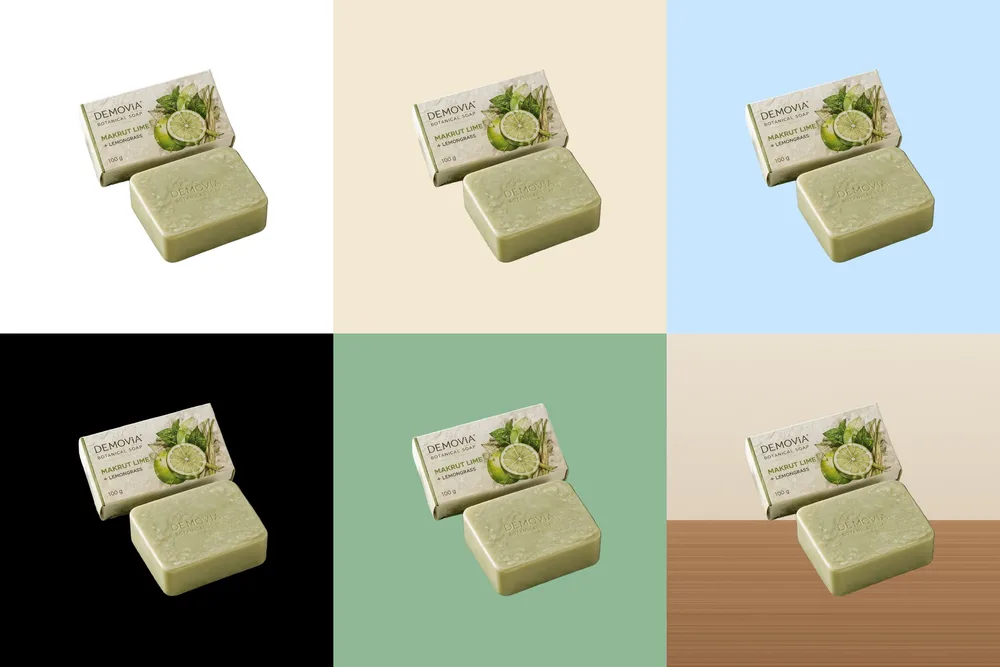
- Pick the background. White is the default. Choose one of 4 ready colours (white, black, cream, light blue), pick your own colour, or upload your own picture as the background (JPG, PNG or WebP up to 10 MB). Change it as often as you like; there is no new cut-out.
- Choose JPG or PNG and press Download. The page shows the file size, for example 2048 × 2048 · 0.21 MB. Compare the product's edge and the label text with your original before you use it.
Step 1 sends your photo to GenLabs' server to cut the product out. Steps 3 and 4 happen in your browser. In our test, after the cut-out, changing the colour, adding a background picture and downloading a JPG and a PNG made no further call to a server at all, so the background picture you choose is not uploaded. We opened the page at screen widths of 390 and 1440 pixels; we have not tried it on a real phone.
The file you get: how big, and JPG or PNG?
You always get a square of 2048 × 2048 pixels, whatever size the photo you sent. To list in a shop, download the JPG: it is under 2 MB. The PNG keeps the background you chose across the whole frame (it is not a transparent PNG), and it is much larger.
| Background (the 1086 × 1448 soap photo) | JPG | PNG |
|---|---|---|
| White | 0.21 MB (210,236 bytes) | 1.56 MB (1,562,631 bytes) |
| A wall-and-table picture we drew for the test | 0.53 MB (529,679 bytes) | 4.41 MB (4,405,727 bytes) |
A PNG's size depends on the background picture; ours has wood grain and noise, so the file is large. For a JPG that is still over 2,000,000 bytes, the tool lowers the quality step by step until it is smaller. The two JPGs above needed no lowering. We have not tried a picture so detailed that it needs it.
Your photo is fitted inside the square, and the rest is background. A portrait 3:4 photo of 1086 × 1448 gets white bands of 256 pixels on the left and the right, and is enlarged 1.41 times (2048 ÷ 1448). A landscape photo of 1672 × 941 is enlarged 1.22 times and gets bands of about 448 pixels above and below. A photo whose longer side is under 2048 pixels is therefore enlarged, and enlarging adds no detail: look at the picture at 100% before you use it.
What this tool does not do
This tool changes the background of a photo you already have. It does not adjust the product. Seven things to know before you use it.
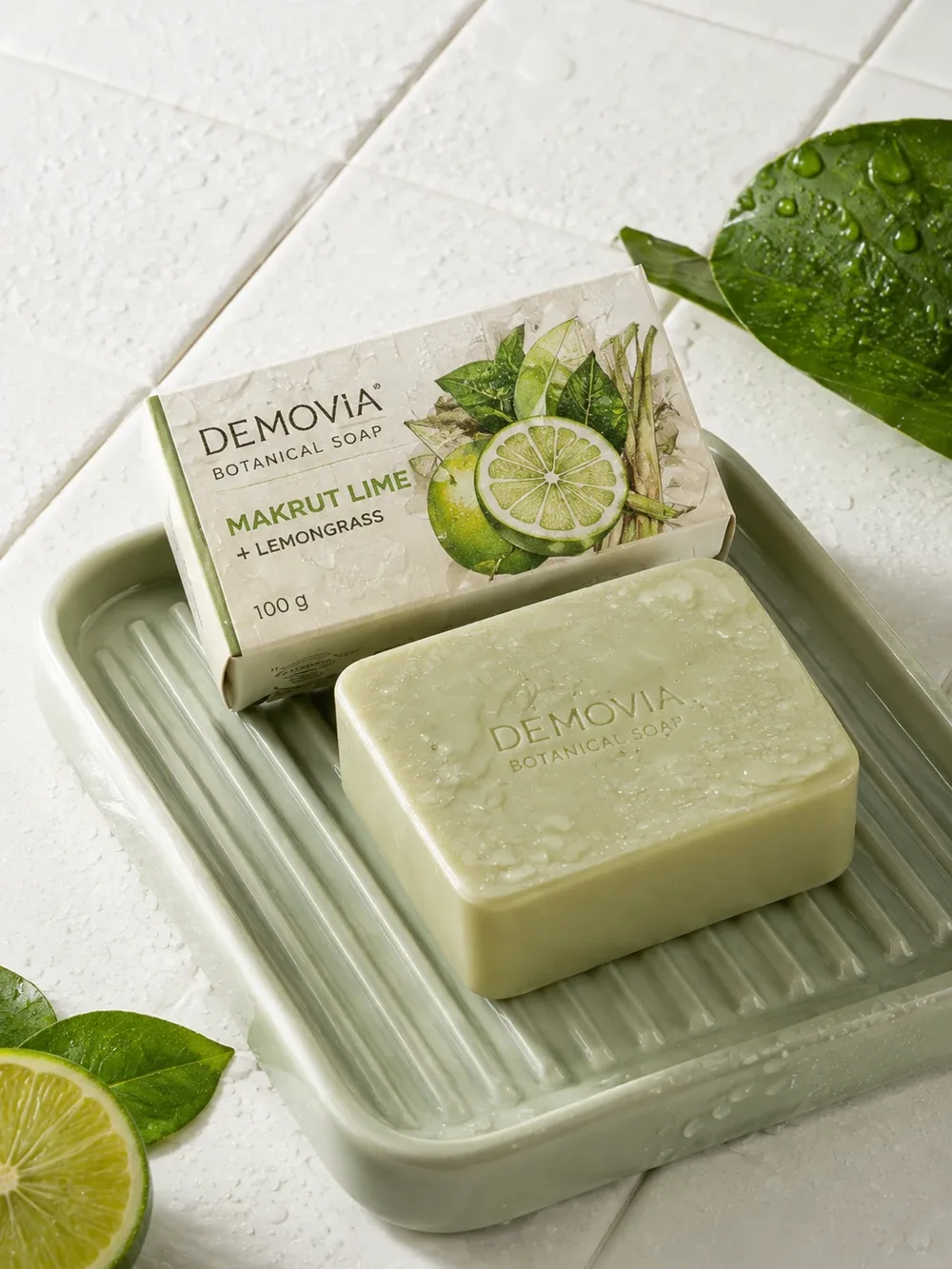
- It does not enlarge the product to fill the frame. In our soap photo the product covers 57% of the width and 58% of the height of the frame, and a box drawn round it covers 33% of the picture. Shopee says the product must be larger than half of the whole picture. It does not say whether that counts width, height or area. If the product is small in your photo it will be small in the result: shoot closer, or crop the photo to cut only the empty margin around the product, never part of the product, because Shopee says to avoid zooming or cutting away part of the picture.
- It adds no shadow. The product sits on the colour or picture with nothing under it. On the wall-and-table picture we tried (the bottom-right tile of the overview in the section above), the table under the soap is as bright as the table beside it (a difference of under 1 out of 255), so the soap may look as if it floats above the table.
- You cannot choose what is kept. The tool decides what the product is. In our soap photo the dish, the half lime and the leaves did not come through; in the tea-tin photo we tried in the background remover, the cup and the leaves beside the tin stayed.
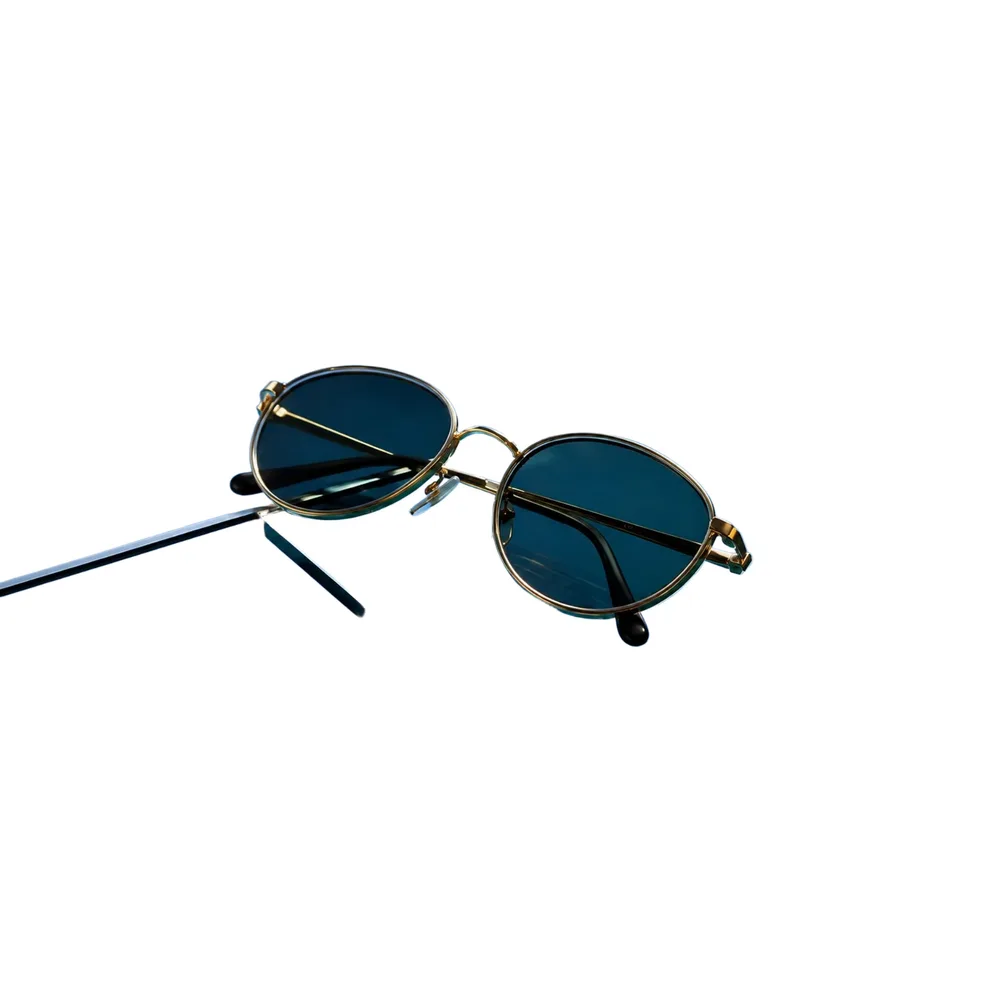
- Cut-out limits are the background remover's, because it uses the same engine. A sheet of glass under the product can leave its edges behind (the sunglasses picture below has two dark glass edges: one long line from the left edge of the picture and one short line under the frame), and where something covers the product in your photo, like foam, only the visible part is cut out. The full test is on the background remover page.
- One photo at a time, no brush to fix edges, and the 3 a day are counted together with the background remover (one shared counter).
- The PNG is not transparent. For a transparent PNG use the background remover.
- Not tested: ID photos, WebP files, a picture so detailed that the JPG quality must be lowered, and a real phone.
If you want more than a plain background
This tool puts the product on the background you choose, with no shadow and no fitting to a scene. If what you need is product images for your shop, your posts or your ads, there is another way. Bring one product photo (a phone photo is fine) and pick a direction. GenLabs writes the prompts, so you do not have to. You get a set of images in 2 minutes and can schedule posts to TikTok, Instagram and Facebook from one place. 700+ Thai businesses have paid for GenLabs.
Our AI photo editor has a “White background” button too, but the free picture from that tool carries a “GenLabs.in.th” watermark at the bottom right (read on the AI photo editor page). This page adds no watermark.
Try it on your own product photoFrequently Asked Questions
How many free background changes a day, and do I need to sign up?
3 free uses a day, with no sign-up, counted together with the background remover (one shared counter). The counter on the page shows how many you have used. One use is one photo uploaded to be cut out. Changing the colour, adding a background picture and downloading several files from the same photo do not count again. After 3 uses, come back the next day.
How do I make a white background for a Shopee product image?
Upload the product photo, wait about 10 seconds, keep white (the default) and download the JPG. You get a plain white 2048 × 2048 pixel picture under 2 MB. Shopee says product images should use a white background (ควรใช้พื้นหลังสีขาว) and the product must be larger than half of the whole picture (https://seller.shopee.co.th/edu/article/19781, read 30 September 2026). This tool does not enlarge the product to fill the frame, so if the product is small in your photo, shoot closer or crop away only the empty margin first.
Why is the file always a 2048 × 2048 square?
The tool fits your photo inside a square of that size and fills the rest with the background. A portrait photo of 1086 × 1448 gets bands of 256 pixels on the left and the right; a landscape photo of 1672 × 941 gets bands of about 448 pixels above and below. The photo is resized to fit, not cropped. A square matches the 1:1 ratio Lazada states for its square Buyer Promotion Image (https://open.lazada.com/apps/announcement/detail?docId=1798, page dated 2023-03-28, read 30 September 2026).
Can I use my own picture as the background, and will the product look like it floats?
Yes. Upload a JPG, PNG or WebP up to 10 MB as the background. It is scaled to cover the frame, with the overflow cut off, and it is not uploaded to a server. The tool adds no shadow under the product: on the wall-and-table picture we tried, the table under the soap is as bright as the table beside it (a difference of under 1 out of 255), so the soap may look as if it floats above the table. With a picture background, pick one where the product can float, like a wall or a plain surface. For a scene made to fit the product, use the GenLabs app.
Can I change an ID photo's background to blue or white?
You can pick the colour: there are ready light blue and white swatches, and you can choose a deeper blue with the colour picker. But the result is a 2048 × 2048 pixel square, not an ID photo size such as 1 inch. We have not tested it on a portrait for an ID photo. The tool is made for product photos.
remove.bg is closing: where else can I change a photo's background?
The notice on remove.bg's own change-background page says its standalone website will no longer be available from 1 December 2026 at 9:00am CET, and that background removal is moving to Canva (read at https://www.remove.bg/th/t/change-background on 30 September 2026; the page is in Thai). Two options we can point to right now. One is this page: one photo at a time, free 3 times a day, no sign-up and no brush to fix edges. The other is Canva, whose page says you can pick a new background from its library, a plain colour or your own picture, and download a high-resolution picture free (https://www.canva.com/th_th/features/photo-background-changer/, read 30 September 2026; the page is in Thai). We did not test Canva or remove.bg. The full comparison is on our background remover page.
Sources
- Shopee ศูนย์การเรียนรู้ผู้ขาย, เกณฑ์การลงขายสินค้าที่มีคุณภาพบน Shopee (section การลงรูปภาพสินค้า): https://seller.shopee.co.th/edu/article/19781 (23-09-2025)
- Shopee ศูนย์การเรียนรู้ผู้ขาย, การใช้งานคลังมีเดีย: https://seller.shopee.co.th/edu/article/6985 (19-09-2024)
- Lazada Open Platform announcement, Product API - Buyer Promotion Image editing feature is now live (English only): https://open.lazada.com/apps/announcement/detail?docId=1798 (2023-03-28)
- remove.bg, เปลี่ยนพื้นหลังรูปภาพ (notice at the top of the page): https://www.remove.bg/th/t/change-background (no date shown for the notice)
- Canva, เปลี่ยนพื้นหลังรูปภาพ: https://www.canva.com/th_th/features/photo-background-changer/ (no date shown)
By Sway, CEO & Founder of GenLabs · Shopee and Lazada requirements read from the official pages on 30 September 2026