Free tool · Watermark remover
Remove Watermarks From Photos With AI, Free, No Sign-up
Remove a watermark from your own image free, 2 times a day, with no sign-up. Upload a PNG, JPG or WebP up to 10 MB and wait 10-30 seconds (our 7 test runs took 24-27 seconds). It works on images only, not TikTok video, and only on your own images.
Drag your image here, or click to browse
Supports PNG · JPG · WebP up to 10MB
The tool at a glance
A short summary before you upload.
| Item | Detail |
|---|---|
| Free use | 2 times a day, no sign-up. Every upload counts as one of the 2, even an image with no watermark. The counter is kept per visitor |
| Files accepted | PNG, JPG, WebP, up to 10 MB each |
| Time | 10-30 seconds (24-27 seconds in our 7 runs) |
| File you get | A JPG at quality 90: a 1086×1448 image came back as a file of about 215 KB, under 2 MB. If you upload a PNG with a transparent background, you get a PNG. In our first test the pixel size was rounded down a little: a 1086×1448 image came back 1072×1440 |
| Where your image goes | The image is sent to our AI provider to process. GenLabs does not store the result |
| Works on | Images only, not video |
| Works in | A browser on a computer or a phone, nothing to install |
| Whose images | Your own images only |
Remove a watermark in 3 steps
Upload the image, press "Remove Watermark", then download the result. It takes about half a minute, and you do not draw a box around the watermark yourself.
- Upload the watermarked image. Drag it in or pick a PNG, JPG or WebP file up to 10 MB.
- Press "Remove Watermark". The AI finds the watermark and removes it. There is no mask to draw. It takes 10-30 seconds.
- Download it and compare with your original. Look at the spot where the watermark was, and read every word printed on the product, before you use it.
A real example: our own logo on our own product photos
We added the GenLabs logo as a watermark on product images made in GenLabs, then removed it with this tool. We used nobody else's image or watermark. Tested on 29 September 2026, not logged in.
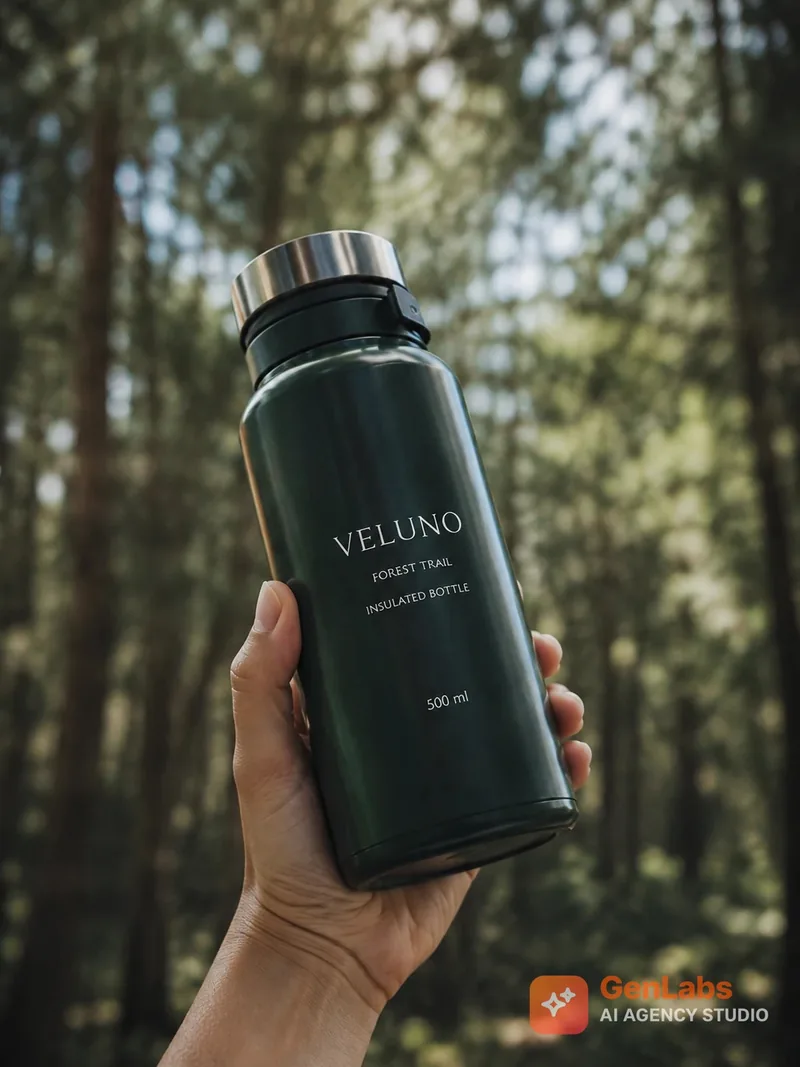
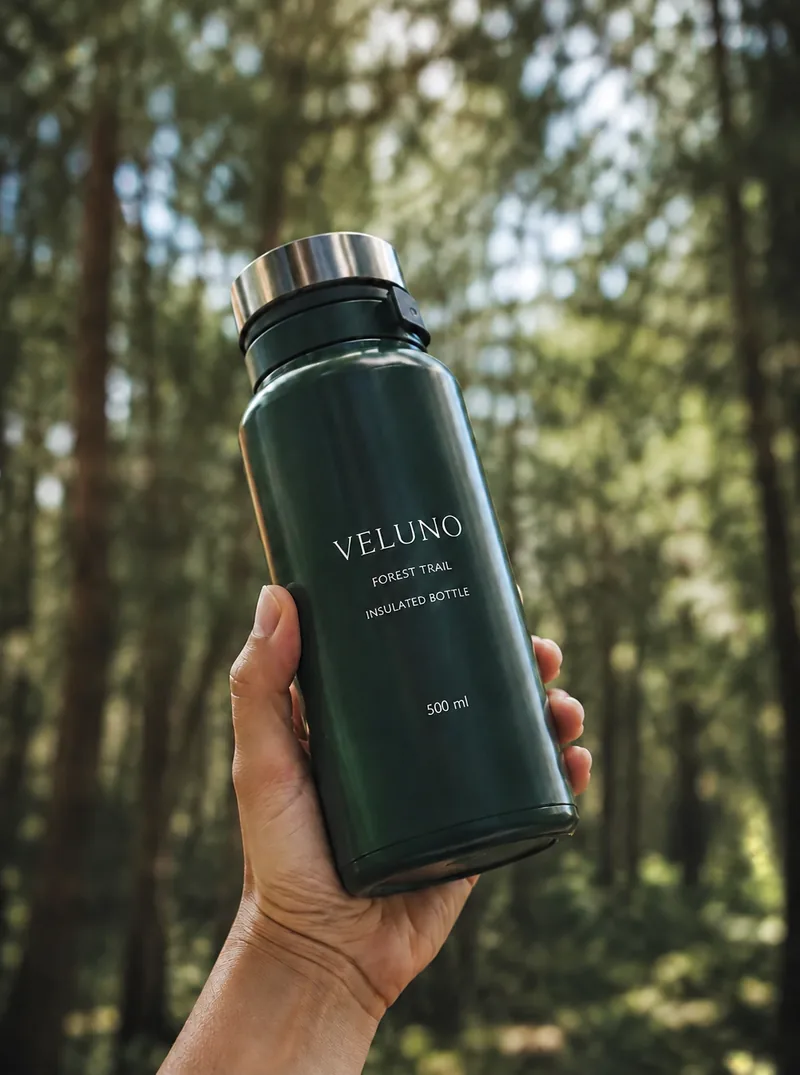
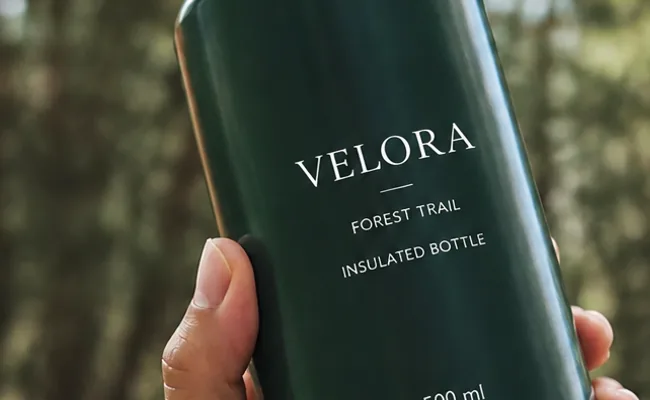
- Image 1, a bottle held up in a forest: the semi-transparent logo in the bottom-right corner is gone. The trees behind it and the skin of the hand join up cleanly, and the words on the bottle did not change.
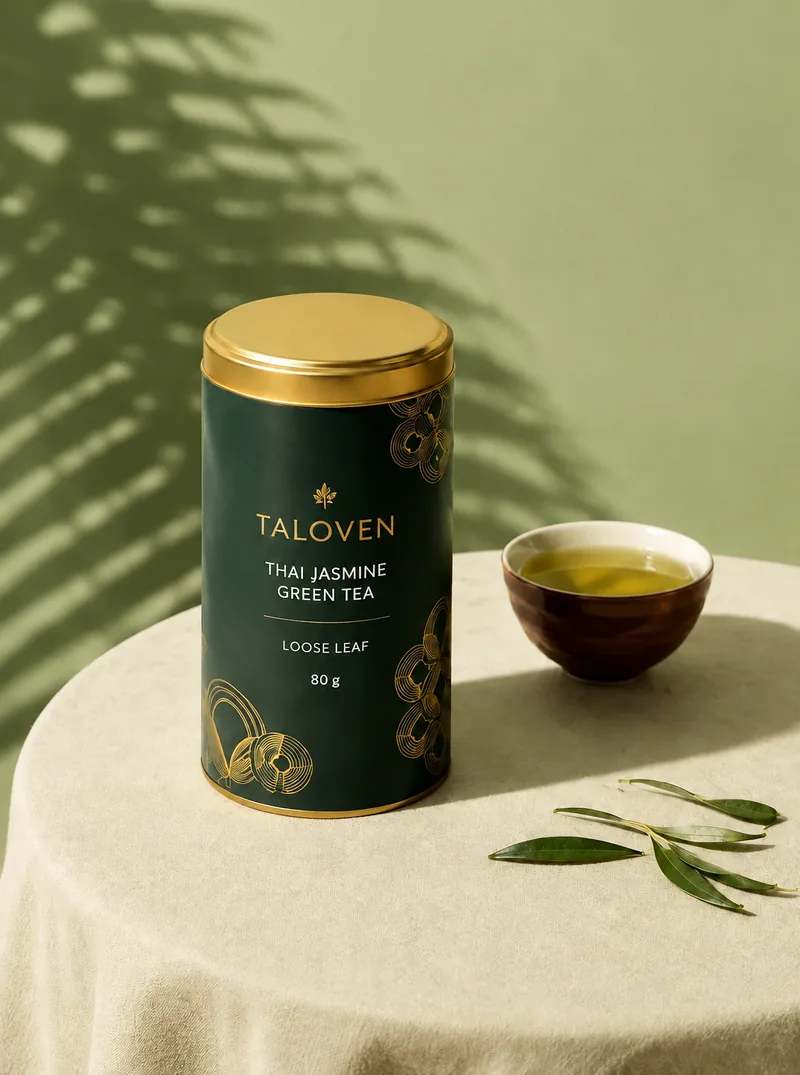
- Image 2, a tea tin on a table: the large semi-transparent logo across the middle of the label is gone, and every line of text on the label matches the original.

Which watermarks come out clean, and which need a check
A semi-transparent watermark in a corner, or across a label, comes out clean. A solid watermark that hides the words on a product makes the AI guess the letters, and it can guess wrong.
| Watermark we tested | What we saw | Before you use it |
|---|---|---|
| Semi-transparent logo in a corner (bottle in a forest) | Gone, and the background joins up cleanly | Compare with the original |
| Semi-transparent logo across a label (tea tin) | Gone, and the label text matches the original | Read every word on the label |
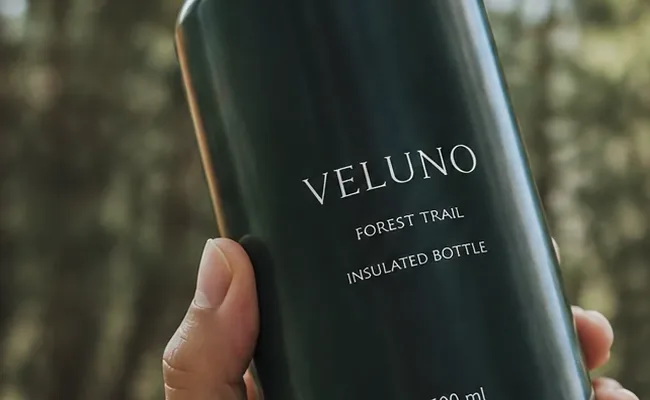
| Solid logo over the brand name on the product (bottle) | The AI wrote the brand name again by itself: "VELUNO" (an invented sample name) became "VELORA" | Do not use this image; use the original without a watermark |
What the tool itself already says: it works best on semi-transparent text watermarks, small to medium logos, and watermarks at the corners and edges. It is less effective on watermarks fully over the product and on watermarks baked into texture. Two things we add from our runs: (1) the AI processes the whole picture, so an image with no watermark at all still runs, counts as one of your 2 free uses a day, and comes back with small pixel changes; (2) in our first test the pixel size of the result was rounded down a little.

Images only, not TikTok video
This tool accepts only image files (PNG, JPG and WebP), so it cannot remove a watermark from a TikTok or CapCut video. It works only on your own images: images you took or made yourself, or images you have the right to use. What it suits:
- Removing your shop's old watermark from your own product photos before a new campaign.
- Removing a "SAMPLE" stamp your shop once put on its own photos.
Remove your shop's old watermark before listing the cover image
Shopee's Seller Education Hub says a product cover image has no watermark, logo or text covering the product, and must not be edited so the product looks different from reality (source: https://seller.shopee.co.th/edu/article/19781, page dated 23-09-2025, read 29 September 2026). If your shop's old photos are stamped with a watermark or a shop logo, remove it before you list the new image, and compare the result with your original every time, especially the words on the product, because our test above shows the AI can change a brand name on a product.
One more thing before you upload to Shopee: the Media Space (คลังมีเดีย) in Seller Centre accepts JPEG/JPG/PNG image files up to 2 MB each (source: https://seller.shopee.co.th/edu/article/6985, page dated 19-09-2024, read 29 September 2026). The file this tool gives you is a JPG. In our test a 1086×1448 image came back as a file of about 215 KB, under 2 MB. If you upload a PNG with a transparent background, you still get a PNG, which can be bigger, so check the file size first. If it is over, reduce it with our image compressor.
After the clean photo: make product images and posts in GenLabs
One clean photo is not enough to keep a page posting every day. If you want new product images for your shop, your posts and your ads, let GenLabs make them. Bring one product photo (a phone photo is fine) and pick a direction. GenLabs writes the prompts for you, so you do not have to. You get a set of images in 2 minutes, and you can schedule posts to TikTok, Instagram and Facebook from one place. 700+ Thai businesses have paid for GenLabs.
Try making product images in GenLabs