If a product photo won't upload to Shopee or Lazada, check five things in the file: file type (Shopee takes JPEG, JPG and PNG, Lazada takes jpg and png), file size (Shopee up to 2 MB, Lazada up to 3 MB), pixel size (Shopee from 500 × 500, Lazada 330 × 330 to 5000 × 5000), ratio (Shopee 1:1, or 3:4 if the shop turns it on) and how sharp the photo is after compressing. You can read all five before you press upload. A file type, file size or ratio that fails can be fixed with a free tool and no sign-up. A photo that is too small, or blurry from the start, needs a bigger original or a new shot. If the app does not show your photos at all, check the app's photo permission first (section 1). Every number comes from Shopee's and Lazada's own pages, read on 30 September 2026. The links and the date of each page are at the end.
If the Shopee app does not show your photos at all, check the photo permission first
Shopee's own help page on this question says the reason you cannot upload a photo in the app may be that you have not let the Shopee app reach your photos [1]. Its steps (our translation):
- Open your phone's settings and go to Privacy > Photos > Shopee, then choose "Read and Write" (the Thai page says "อ่านและเขียน").
- On iOS 14, if you cannot find the photo you want, you may have allowed access to only some photos. Close the Shopee app, open it again and go back to the upload page.
- When the pop-up appears at the bottom, tap "Select more photos" (the Thai page says "เลือกรูปภาพเพิ่มเติม") and choose the photo to upload.
The steps above are for an iPhone (iOS). On Android, look for the Photos permission of the Shopee app in your phone's settings (the menu names differ by phone).
If the photo shows in the app but the upload fails or the photo looks soft, read section 2.
The 5-point file check: Shopee's and Lazada's limits, and how to read each value from your file
The 5-point file check means reading five values from the file before you press upload and comparing them with the platform's limit. A value that fails its limit is the one to fix. A value that passes needs no change. The table gives the limits from the platforms' own pages, read on 30 September 2026 (the number in brackets is the source at the end). Lazada's MB limit and pixel range come from its developer documentation (Lazada Open Platform); see section 10.
Terms: a pixel is one small dot of colour in the picture. 1080 × 1080 means 1,080 dots wide and 1,080 dots high. Ratio is width to height: 1:1 is as wide as it is high, and 3:4 is one third higher than it is wide. To compress means to make the file smaller.
| # | Check | Shopee | Lazada | Fix with |
|---|---|---|---|---|
| 1 | File type | JPEG, JPG, PNG only [2] | jpg, png [10] | Image converter |
| 2 | File size (MB) | Up to 2 MB [2] [4] | Up to 3 MB, which is 3,145,728 bytes [10] | Image compressor |
| 3 | Pixel size | Cover photo: "not below 500x500" [3] (the newer page [5] recommends a size "larger than 500x500"). Shopee Ads recommends 1024 × 1024 or more [9] | 330 × 330 to 5000 × 5000 [10] [11] | Image resizer. It can shrink, but it cannot make a small photo sharp |
| 4 | Ratio | 1:1 or 3:4, as the shop sets it [6] | Not stated for ordinary product photos on the pages we read | Image cropper or the image resizer |
| 5 | Sharpness | A cover photo must be "not blurry or broken" (ไม่เบลอ แตก) [5] | No number stated | Compress less, or shoot again |
How to read the five values from your file:
- File type: look at the extension at the end of the file name (.jpg, .png, .heic, .webp).
- File size: in the Photos app on an iPhone, tap the photo and swipe up. The info includes the file size [13].
- Pixels and file size together: choose the file in the image resizer and read the line under the file name, for example "1086 x 1448 - 665 KB". That is 1,086 pixels wide, 1,448 high, and a 665 KB file (this tool counts 1 MB as 1,024 KB). The tool runs in your browser and reads only JPG, PNG and WebP. A HEIC file shows "รองรับเฉพาะ JPG, PNG และ WebP" (it supports only JPG, PNG and WebP), as we tested on 30 September 2026.
- Ratio: divide width by height. 1086 ÷ 1448 is 0.75, which is 3:4.
- Sharpness: open the photo and zoom to 100%. Look at the edge of the text on the label and the edge of the product. If you see square blocks or soft, smeared edges, read section 7.
Check 1, file type: iPhone photos (HEIC) and WebP must be turned into JPG first
Shopee's media library page says an image must be a JPEG, JPG or PNG file [2]. Lazada lists jpg and png [10]. HEIC and WebP are on neither list. When an upload fails, the media library shows "ไม่สำเร็จ" (failed) in the status column [2].
HEIC is the file format an iPhone uses when its camera is set to "High Efficiency". Apple says this format takes less space than JPEG at the same quality [12]. Photos saved from some websites are .webp files.
Fix this photo now: choose the file in the image converter, pick JPG and download. The tool takes HEIC, JPG, PNG and WebP up to 10 MB, free 5 times a day, with no sign-up. In our test (30 September 2026) a 1.00 MB HEIC at 1086 × 1448 pixels came out as a 0.30 MB JPG at the same pixel size, in 0.7 seconds.
Prevent it for the next photos: on an iPhone, open Settings, tap Camera, tap Formats, then tap "Most Compatible". All new photos will be JPEG [12]. It applies only to photos you take after you set it, and only iPhones that can capture both formats have the option. JPEG files are bigger than HEIC, so check 2 matters next.
A PNG with a transparent background, such as a photo that went through the background remover, needs care when you save it as a JPG, because a JPG has no transparency. The image converter and the image resizer fill the transparent area with white when they save a JPG, in every mode (in our test of the image converter on 29 September 2026 the four corners were 255, 255, 255). Every time, open the JPG and check that the corners are white. Shopee suggests a white background for the cover photo [3].
Check 2, file size: over Shopee's 2 MB or Lazada's 3 MB, turn PNG into JPG, then compress
Shopee says an image file must be no larger than 2MB [2]. Its listing policy page says it "should" be no more than 2MB [4]. Lazada gives its limit in bytes, 3,145,728, which is 3 MB [10]. A file over the limit must be made smaller first.
How many bytes is a MB here? Lazada's 3,145,728 is 3 × 1,048,576. Shopee does not say how many bytes it counts in a MB. If 1 MB is 1,000,000 bytes, Shopee's 2 MB is 1,953 KB in the image resizer's numbers. So keep the file at 1.9 MB or less, which passes either way of counting.
A phone photo can go over. One seller wrote on Pantip (27 September 2020) that a 4608 × 3456 pixel photo of 3.98 MB, uploaded through the Shopee app, had "ซูมภาพแตกเยอะมาก" (broke up badly when zoomed). A Shopee Thailand account replied in the same thread that day to upload files of no more than 2.0 MB [14]. (That file was almost twice the limit, the thread is six years old, and we cannot check what the app did to the file.)
PNG is often the big one. In our test, the same can photo was a 0.65 MB JPG but a 2.55 MB PNG, which is over Shopee's limit. The image converter turned it into a 0.31 MB JPG, 8.3 times smaller, at the same pixel size (tested 30 September 2026).
Steps:
- If it is a PNG or a HEIC, turn it into a JPG first with the image converter.
- If it is still over, use the image compressor and press the 1MB button (or 500KB if you want room to spare). It takes JPG, PNG and WebP up to 10 MB, free 5 times a day.
- Read the new size the tool shows before you download, and compare it with the table.
In our test (30 September 2026) a 2.73 MB JPG came out at 1,013,511 bytes (0.97 MB) when we pressed 1MB, at quality 79 and the same 2172 × 2896 pixels, in under a second (the 500KB button gave 505,911 bytes at quality 47). We made this test file ourselves from the can photo, enlarged to 2172 × 2896 pixels with fine grain added so that it is as big as a phone photo. It is not a photo taken on a real phone.
Do not start by compressing a PNG. In our test the 2.55 MB PNG came out at 657,046 bytes (0.63 MB) when we pressed 500KB, which is under 2 MB but not under the 500 KB we pressed. The file is a palette PNG (8-bit colormap, as a file-type check reads it), which means fewer colours, and it took 10.7 seconds (a JPG takes under a second). In a test on 29 September 2026 with the same file, the 100KB and 200KB buttons gave the same size, and the 1MB button gave 955,029 bytes. The easier way is to turn the PNG into a JPG first.
Check 3, pixel size: a photo that is too small cannot be enlarged into a sharp one, you need a bigger original
Under its cover photo heading, Shopee's listing quality page says an image must be at least 500x500 pixels [3]. A newer criteria page (dated 23-09-2025) says the cover photo must be sharp, "not blurry or broken" (ไม่เบลอ แตก), and recommends a size "larger than 500x500 pixels" [5]. Shopee Ads recommends a square of at least 1024x1024 pixels [9]. Lazada takes 330 × 330 to 5000 × 5000 [10], and its English error message says "Image size should be larger than 330x330 pixels and not more than 5000x5000 pixels" (that row is for a description image pulled from another site) [11].
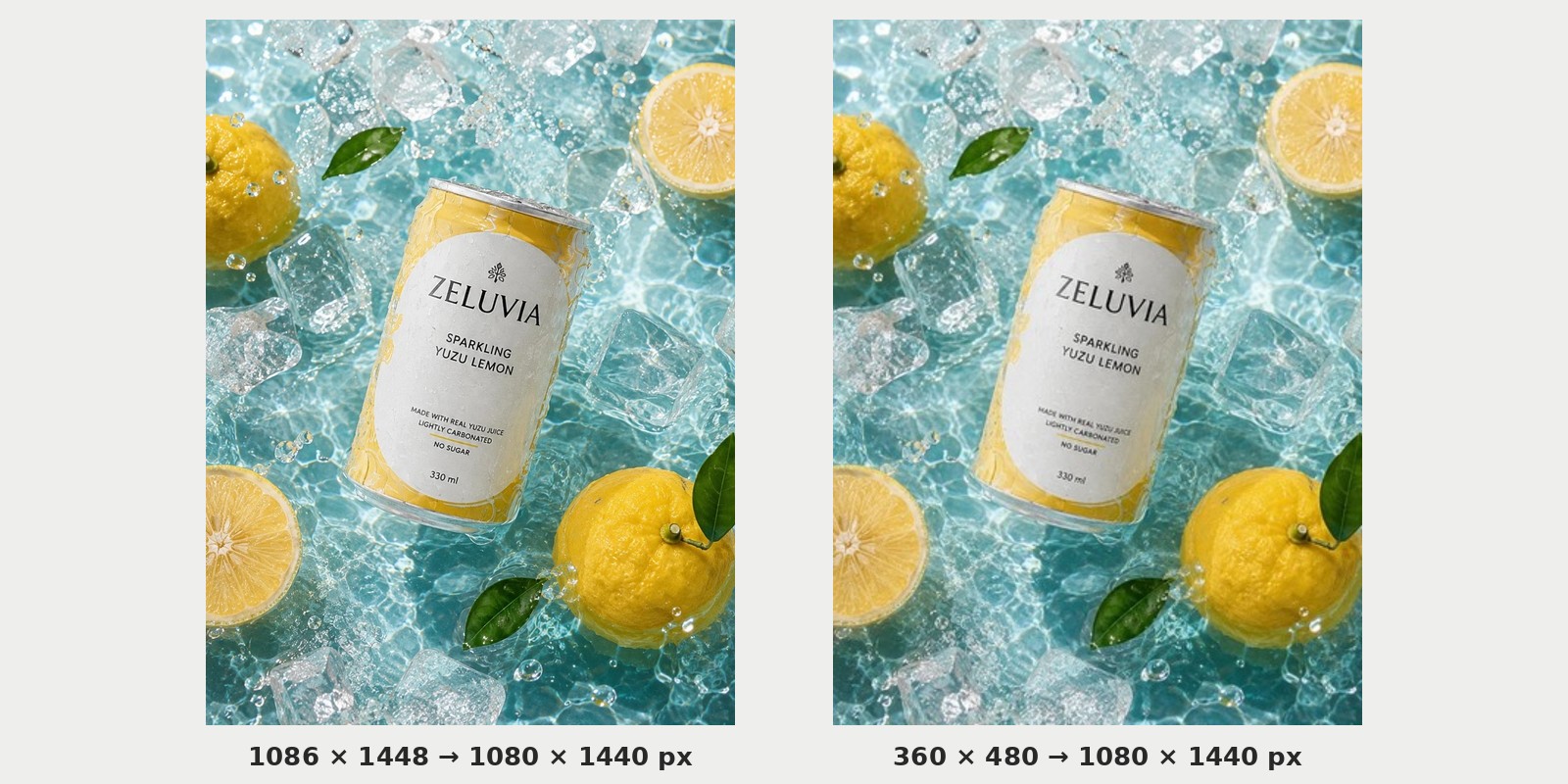
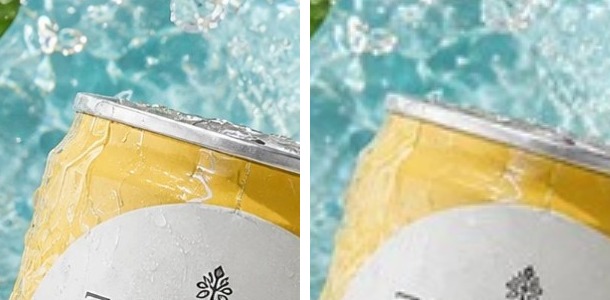
File size does not tell you whether a photo is sharp. We tested one photo two ways. The first was the full 1086 × 1448 pixel file. The second was a copy shrunk to 360 × 480 pixels. We brought both to 1080 × 1440 pixels with the image resizer. Both files look normal in size, 417 KB and 306 KB. But the enlarged copy has only 172,800 real pixels against 1,572,528 in the full file, more than 9 times fewer. At 100%, the edge of the can and the water drops in the enlarged one are soft and smeared, while the full file stays sharp at the edge and on each drop (the PSNR of the enlarged photo against the full file, which we measured, is 27.7 dB, and a lower number means further from the original; see the picture below).
Steps:
- A photo below the limit needs a new shot, closer, or an export from the full-size original. Do not use a picture zoomed in to a small part, because Shopee says to avoid "adjusting the photo by zooming or cropping part of it" (our translation) [3]. The image resizer can change the pixel size, but it cannot add detail that is not in the picture.
- A photo larger than 5000 pixels on either side (Lazada's top limit): shrink it with the image resizer by typing the width and height you want.
- With no bigger original, the photo enhancer has an AI Enhance mode with a 2× option that doubles width and height (its page says the 2× option counts toward the free 2 AI Enhance photos a day, and Basic Sharpen has no daily quota). In our test (29 September 2026) both modes sharpened what was already in the photo, wrote no new faces, kept large print on the label the same letters, and on a very blurry photo left most of the blur in place. Very small print can change shape at 2× (in our test, print about 5 pixels tall). Check the label and any text on the product every time, because Shopee says a photo must not be edited so that the product differs from the real one [3].
Check 4, ratio: Shopee uses 1:1 or 3:4, so crop or pad a photo that is not that shape yourself
Shopee's page says a shop chooses between 1:1 and 3:4 images, and the shop page shows the one it chose. Promotion images on promotion pages, search results and the daily discovery page still show only 1:1 [6]. Shopee Ads recommends a square [9]. Lazada states no ratio for ordinary product photos on the pages we read [10] [11]. The Shopee pages we read do not say what Shopee does with a photo that is not 1:1 or 3:4. So make the file the shape the shop uses, and do not leave the choice to the platform.
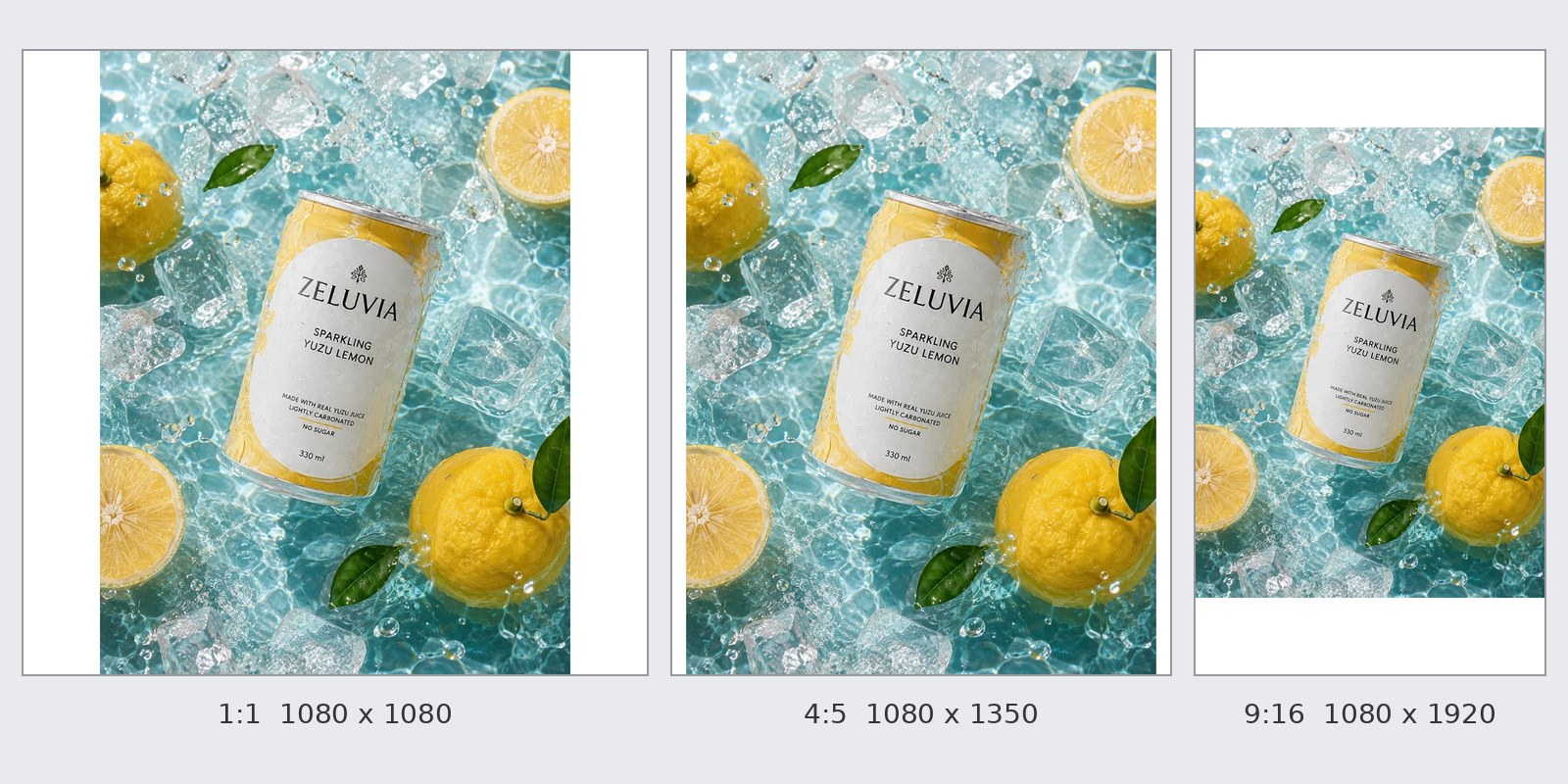
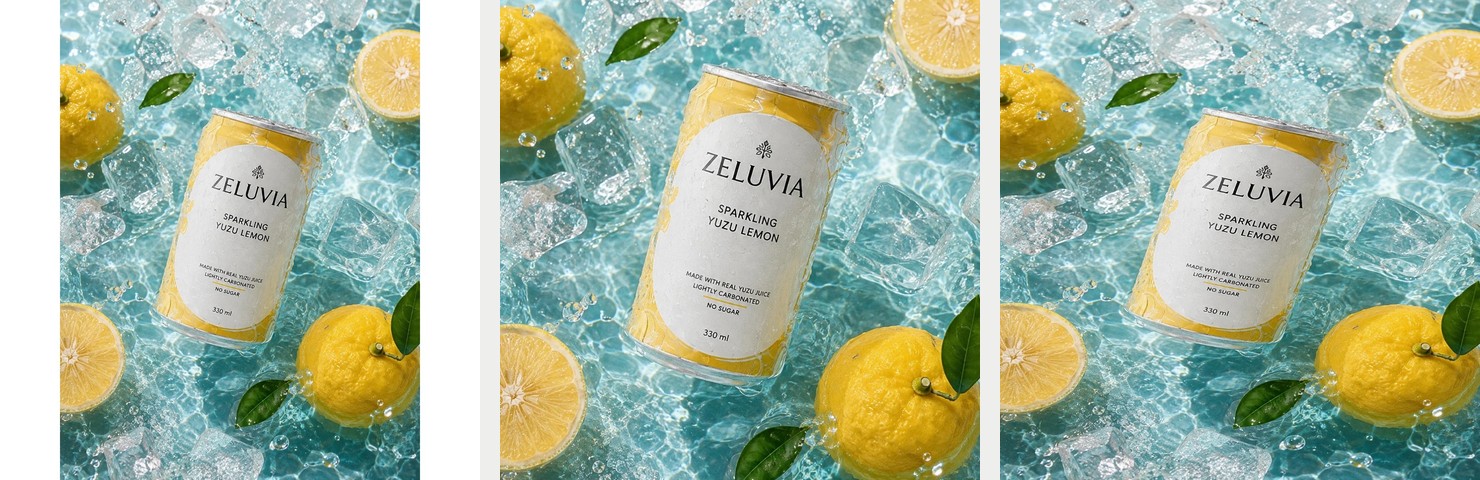
We made a 3:4 portrait photo (1086 × 1448 pixels) square, 1080 × 1080, with the image resizer in all three modes:
| Mode in the tool | What happens to the photo |
|---|---|
| "ไม่ครอป เพิ่มขอบ" (fit with padding) | The whole photo shows, with white bars left and right. The photo is 810 pixels wide |
| "เต็มเฟรม ครอปอัตโนมัติ" (fill and crop) | No bars. The top and bottom are cut off. It keeps 75% of the height (1086 of 1448 rows), cut from the centre, and you cannot pick the part |
| "ยืดให้พอดีเป๊ะ" (stretch exactly) | No bars and no cut, but the can is distorted (squashed lower). Do not use it for product photos |
Fix: to choose which part of the photo to keep, use the image cropper. Drag the frame over the part you want and get a JPG or PNG at the pixel size you chose. It is free 10 times a day, with no sign-up. To keep the whole product, use the padding mode of the image resizer. A very tall product, such as a long bottle, may lose its top or bottom in a square crop. Choose padding, or shoot again.
Check 5, blurry after upload: over-compressed, enlarged from a small photo, or a zoomed crop, all checkable in the file you send
Shopee says a cover photo must be sharp, "not blurry or broken" (ไม่เบลอ แตก) [5]. Sellers describe this in their own words: "ลงภาพขายเสื้อผ้าใน shopee แล้วภาพไม่ชัดเอามากๆค่ะ (ไฟล์ภาพต้นฉบับชัดมาก)" (I posted clothes photos on Shopee and they came out very blurry, though the original file is very sharp; Pantip, 23 July 2021) [15]. The Shopee pages we read do not say whether Shopee compresses or shrinks a photo after upload. So we cannot say where the blur happens. What you can check is the file you send. There are three causes you can check.
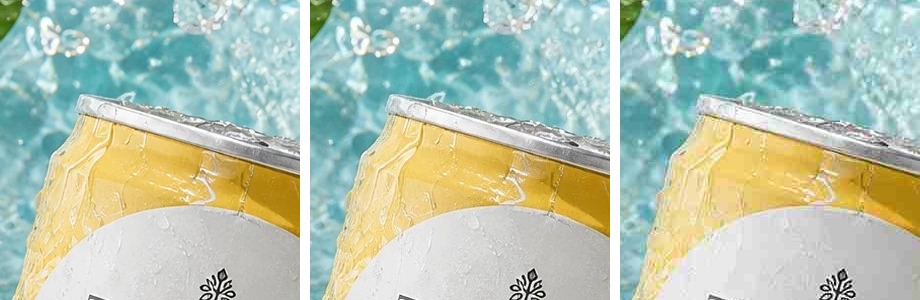
A. Compressed too far. We compressed the same can photo (a 665 KB JPG at quality 95, on a 0 to 100 scale stored in the file) with the image compressor. The 500KB button gave a 501,434 byte file at quality 90, which is hard to tell from the original at 100%. The 100KB button gave a 100,098 byte file at quality 21, with softer edges, square blocks and coarse colour banding in the water, and small drops smeared (the number we measured against the original, called PSNR, is 38.5 dB at the 500KB button and 29.6 dB at the 100KB button, and a higher number is closer to the original; see the picture below). Rule: pick the biggest button that stays under the limit. For Shopee's 2 MB, use the 1MB button, not 100KB.
B. Enlarged from a small photo. See check 3. The enlarged file has a normal file size but few real pixels.
C. A zoomed crop of a small part. Shopee says to avoid zooming or cropping part of the photo [3]. A crop keeps only a small part of the original photo, so it has few real pixels, like B, and enlarging it back does not make it sharper.
Fix: send a file that passes all three: the full-size original with no zoom crop, and if it must be compressed, only down to 1 MB, not 100 KB. If the original was blurry when shot, the resizer and the compressor cannot fix it. Shoot the product photo on your phone again, sharper, or try to sharpen the blurry product photo. Its Basic Sharpen mode gives a JPG. Its AI Enhance mode gives a PNG that is bigger (in our test a 77 KB photo became a 752 KB PNG), and on a very blurry photo it helps little (see check 3). If you use the AI Enhance mode, go back and redo checks 1 and 2.
One file that passes both Shopee and Lazada: four steps in order
A file that passes both platforms is a JPG at 1:1, from 1024 × 1024 to 5000 × 5000 pixels, under 2 MB. This is our own conclusion, not a platform rule. The table for every platform is in product image sizes for every platform, 2026. The steps in order are below. Do only the steps whose check failed, because each time you save a JPG again the file is compressed once more (a JPG from the image converter has quality 80 as we read it from the file it gave us, and the image resizer starts at 90).
- Change the file type. If it is a HEIC, use the image converter. If it is a PNG or a WebP, you can skip to step 2, because the image resizer has an output box where you can choose JPG (for a PNG with a transparent background, check that the corners of the JPG are white, as in check 1).
- Make it 1:1 at the pixel size you want. Use the image cropper if you want to pick the part to keep, or the image resizer: type 1080 × 1080, choose the mode from check 4, choose JPG and leave the file quality at 90% (the default).
- Compress last. If the file is still over 1.9 MB, use the image compressor and press the 1MB button.
- Look at 100% once before you upload, at the edge of the text on the label. If it is still sharp, upload.
The photo passed but the product still will not list: it may not be the photo
Two Shopee pages that answer "why can't I list" do not mention the photo file at all. The page "why does my listing not show in my shop" (dated 23-09-2025) lists causes such as: the phone number is not verified, the number does not match the Thai format, no pickup address is set or no shipping channel is on, the product breaks the listing policy, the shop is over its listing quota, the shop is limited by its conduct score, or the product is under review [7]. The page "why can't I list a product" (dated 02-09-2022) lists a price gap between options that is too big, and missing required attributes (the fields marked with an asterisk) [8].
Two more causes are about the picture itself. Shopee's media library removes an image that duplicates another one from the upload, and takes at most 60 files at a time [2]. Lazada shows "Seller has uploaded duplicate image" when you upload a duplicate, and "Tips Upload Error!" followed by "System error, please refresh and upload image again" for a system error (these messages are in English, on the English version of Lazada's Thai Seller Center help page) [11].
Limits of this article and of the free tools
- We have not uploaded to a real Shopee or Lazada shop. The limits in the table come from the official pages read on 30 September 2026, and the test results come from our free tools on our own test photo.
- Shopee's pages do not say what Shopee does to a photo after upload. So we cannot say whether a blurry photo was shrunk or compressed at Shopee, or was already damaged before.
- Shopee words the cover photo's pixel size two ways. The 2022 and 2023 pages say "not below 500x500" [3]. The 2025 page says to use a size "larger than 500x500" [5] (a recommendation, not a "must"). Use a photo larger than 500x500 to be safe.
- Shopee does not say how many bytes it counts in a MB, so keep the file at 1.9 MB or less.
- The Pantip threads are what sellers told us. They are five to six years old, and we cannot check the cause.
- Our free tools have their own limits. The image compressor and the image converter are free 5 times a day, the image resizer and the image cropper 10 times a day. Every one takes files up to 10 MB. The image resizer and the image cropper cannot read HEIC, so convert first. The image compressor does not bring a PNG down to the size of the button you press, and gives a reduced-colour PNG. All four change the size or the file type only. They do not fix the product in the picture.
- The image converter and the image compressor take photos up to 50 million pixels (10,000 on a side), so a 12 million pixel photo from an ordinary phone (4032 × 3024) passes. The image resizer runs in your browser and does not use that cap.
- Lazada's 3 MB and its pixel range come from the Image Upload page of the Lazada Open Platform (developer documentation). The Seller Center page we read has the pixel range only inside an error message for a description image, and no MB figure.
Frequently asked questions
My product photo won't upload to Shopee. What should I check first?
First check whether the app can see the photos on your phone. If it cannot, turn on the Photos permission for the Shopee app in your phone's settings. If it sees them but the upload fails, run the 5-point file check: file type, file size, pixels, ratio and sharpness. Fix the one that fails its limit as sections 3 to 7 describe.
How many MB and pixels can a Shopee or Lazada product photo be?
Shopee takes JPEG, JPG and PNG up to 2 MB, from 500 × 500 pixels. Lazada takes jpg and png up to 3 MB (3,145,728 bytes), from 330 × 330 to 5000 × 5000 pixels. The full table for every platform is in the product image sizes article.
Why won't my iPhone photo upload to Shopee?
It may be because an iPhone set to "High Efficiency" saves photos as HEIC, which is not on the list of files Shopee and Lazada take. Turn it into a JPG with the image converter, or set the camera to "Most Compatible" for the photos you take from now on.
Why is my Shopee photo blurry after I upload it?
Three causes can be checked in the file: compressed too far (in our test the 100KB button gave softer edges and square blocks, and the 500KB button was almost the same as the original), enlarged from a small photo, or a zoomed crop of a small part. Shopee does not say whether it shrinks or compresses a photo after upload, so check the file you send.
How do I get a photo under 2 MB?
If it is a PNG, turn it into a JPG first (in our test a 2.55 MB PNG became 0.31 MB). If it is still over, use the image compressor and press the 1MB button. Keep the file at 1.9 MB or less, because Shopee does not say how many bytes it counts in a MB.
Does the photo have to be square?
Shopee uses 1:1 or 3:4 images, as the shop sets it, and Shopee Ads recommends a square. Lazada states no ratio on the pages we read. Shopee's pages do not say what happens to a photo of another ratio, so crop it or add bars to the shape the shop uses before you upload.
Want a new set of product images that are ready for your shop? Let GenLabs make brand images and campaign sets from a phone photo of your product, in 2 minutes. 700+ Thai businesses have paid for GenLabs.
Try it on your own product photoFree trial: 10 credits, for trying images
Sources
- Shopee Help Center: why can't I upload photos in the Shopee app, https://help.shopee.co.th/portal/4/article/80748 (no date shown; Thai only)
- Shopee Seller Education: using the media library, https://seller.shopee.co.th/edu/article/6985 (19-09-2024; Thai only)
- Shopee: improving listing quality, https://seller.shopee.co.th/edu/article/14587 (20-06-2022; the same lines are at https://seller.shopee.co.th/edu/article/338, which showed 06-07-2023 when we read it)
- Shopee: product listing policy, https://seller.shopee.co.th/edu/article/7049 (14-11-2025)
- Shopee: quality product listing criteria, https://seller.shopee.co.th/edu/article/19781 (23-09-2025)
- Shopee: using 3:4 product images, https://seller.shopee.co.th/edu/article/17297 (10-04-2024)
- Shopee: why does my listing not show in my shop, https://seller.shopee.co.th/edu/article/15784 (23-09-2025)
- Shopee: why can't I list a product, https://seller.shopee.co.th/edu/article/15730 (02-09-2022)
- Shopee Ads Thailand: improving product details for effective ads, https://ads.shopee.co.th/learn/faq/73/59 (no date shown)
- Lazada Open Platform: Image Upload, https://open.lazada.com/apps/doc/doc?nodeId=30715&docId=120947 (Last Updated Jul 19, 2024; English)
- Lazada Seller Center Thailand: How to fix Error message when adding or editing product, https://sellercenter.lazada.co.th/helpcenter/s/faq/knowledge?language=en-US&m_station=BuyerHelp&questionId=1000147829&hybrid=1&flag=tempWebview&categoryId=1000028123 (Last update 2024-11-26; English)
- Apple: Using HEIF or HEVC media on Apple devices, https://support.apple.com/th-th/116944 (published 19 December 2568 = 2025 on the Thai page; the English page, https://support.apple.com/en-us/116944, says December 05, 2025)
- Apple: See photo and video information on iPhone, https://support.apple.com/th-th/guide/iphone/iph0edb9c18f/ios (no date shown; English: https://support.apple.com/guide/iphone/see-photo-and-video-information-iph0edb9c18f/ios)
- Pantip: SHOPEE product photo looks broken after upload, https://pantip.com/topic/40224582 (27 September 2563 = 2020; a Shopee Thailand account replied the same day)
- Pantip: photo looks blurry after upload to Shopee, https://pantip.com/topic/40859858 (23 July 2564 = 2021)