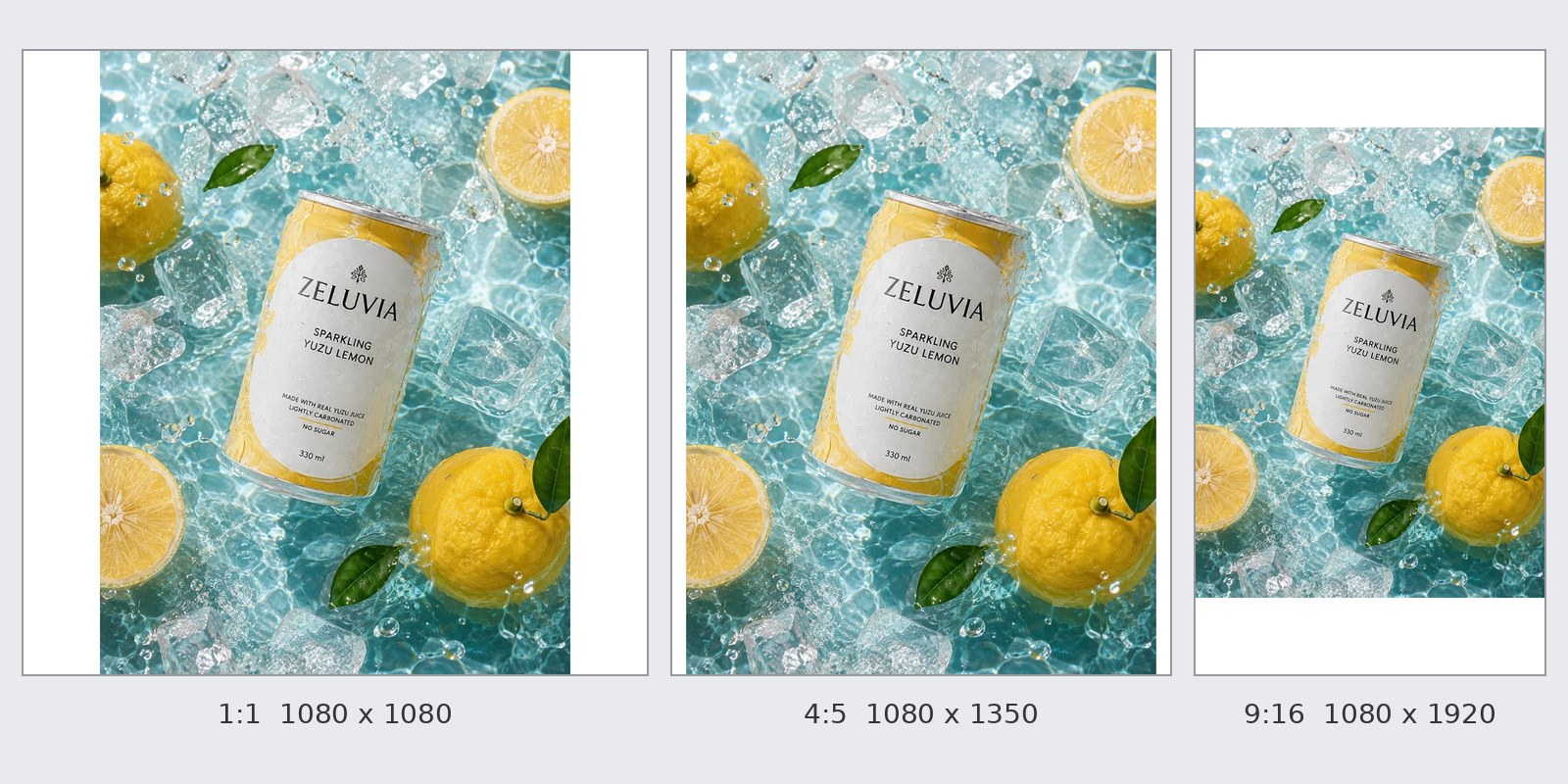
A GrabFood menu photo must be 1:1 (a square) and at least 750 x 750 pixels. Grab's help page suggests saving it as a JPG at 750 x 750, food only, with text or other images covering no more than 30% of the picture. Grab writes the file size two ways: up to 5 MB on the menu edit page, and up to 2 MB per image on the bulk-update page. A JPG under 2 MB passes both (read 30 Sep 2026). LINE MAN does not state a menu photo size on the official pages we read. Our suggestion is to make the file to Grab's rules and use it for LINE MAN too, then open the photo in the app and check the whole dish shows. This page is about menu photos inside a delivery app, not about designing a paper menu. It has four real square crops with what each one lost, and a four-point check before you upload.
GrabFood menu photo size: the rules from Grab's help page
One menu item in GrabFood needs a 1:1 photo of at least 750 x 750 pixels. Grab uses three kinds of photo. This table is what Grab's GrabFood merchant help page writes; the menu photo is the first row.
| Photo | Where it shows (as Grab writes it) | Ratio and minimum | File Grab suggests |
|---|---|---|---|
| Menu/Catalogue photo | The product photo in your menu/catalogue | 1:1, minimum 750 x 750 px | JPG at 750 x 750 px, no more than 5 MB; name the file after the item in the menu |
| List photo | The main store photo on the GrabFood or GrabMart homepage | 1:1, minimum 750 x 750 px | JPG at 750 x 750 px, no more than 5 MB |
| Store (banner) photo | The banner at the top of the screen once a customer opens your store | 9:5, at least 1350 x 750 px | JPG at 1350 x 750 px, no more than 5 MB |
The same page says this about what is in the picture:
- Use food-related photos only, because customers look at food images more than logos (written for the menu photo and the list photo).
- Text or other images in the photo must not take more than 30% of the area (written for all three).
- Avoid grid photos (several pictures joined in one) and do not show other brands or products (all three).
- The item should be centred, not off to the side. Use clear, sharp photos, not too dark, too bright or blurry (general guidance).
- The general guidance also says to make sure there is no distracting text or emoji in the photo (the Thai version of the page says no text or emoji), that the photo needs valid copyright, and that watermarks are to be avoided.
On the Thai page the two lines about text do not match exactly (no text or emoji at all, against up to 30%); the English page says "distracting" text, which fits better with the 30% line. A menu photo with no lettering on it is the safe one.
Grab writes the file size two ways, on two pages:
| Page | File type | File size | Ratio |
|---|---|---|---|
| Request to update restaurant menu or pricing | JPG | up to 5 MB | 1:1, minimum 750 x 750 |
| Using Bulk Update to manage multiple items on GrabFood menu | .png or .jpg only | up to 2 MB per image; up to 4 photos per item | 1:1 is "optimal" |
A JPG under 2 MB passes both pages. The 750 x 750 crops we made from our sample images (section 3) came out at 90-155 KB.
Two more points from the help page: every menu and catalogue update request is reviewed and approved internally by Grab, and a newly opened store must add its menu by hand in the app. The list photo and the store photo are changed in the Grab Merchant app: tap the Store tile, then the camera icon at the top right.
Source: the two pages above. No date is printed on either page; read 30 Sep 2026 (you can open them without a login; they have sample pictures that we did not look at). The Thai versions, help.grab.com/merchant/th-th/360027910451, carry the same numbers; they differ only in the text rule noted above (no text or emoji, not "distracting" text).
LINE MAN menu photo size: what its official pages say, and what they do not
LINE MAN does not state a menu photo size, ratio or file size on the official pages we read. On 30 Sep 2026 we loaded every page in the page list (sitemap) of the LINE MAN Wongnai merchant classroom (1,444 pages) and searched the text of the pages for pixel sizes, ratios and MB, plus Wongnai for Business's articles on menu and cover photos. The only image sizes we found are for the shop cover, and for images inside the POS software, which is a different product. We did not read the screenshots embedded in the pages.
The app where a shop uploads is the Wongnai Merchant App, which needs a login, so we could not read its screens. If the app shows a size when you pick a photo, follow the app.
What LINE MAN and Wongnai do write about photos:
| Topic | What it says | Page and date |
|---|---|---|
| Shop cover photo | Suggested 1200 x 675 px, ratio 16:9; a 9-cell grid shows the part that will be cut | Wongnai for Business, 12 Oct 2021 |
| Profile picture (รูปภาพประจำร้าน) | Can be set as a square, 1:1, shown on LINE MAN's search page; no pixel size | LINE MAN merchant classroom, no date printed, the site's page list shows last change 5 Jul 2023 |
| A good menu photo | Attractive colour, sharp, the food matches ("อาหารตรงปก"), an uncluttered background, no text covering the food | 2 tips before you run LINE MAN ads, no date printed, the site's page list shows last change 8 Apr 2025 |
| Angles | 45 degrees suits almost every dish; 90 degrees (top view) suits dense toppings such as pizza and crepes; 0 degrees suits drinks, cakes and sandwiches with layers to show | same page |
| Best sellers | Give the shop's top 6 sellers (the "เมนูดัง คนสั่งเยอะ" group) the most attractive photos | same page |
| Food in the middle | Food in the middle of the picture, covering about 80% of it, on a plain, clean background | Wongnai for Business, 22 Jul 2021 |
| New shops | A 4-point checklist to become eligible for LINE MAN's campaigns, one point being "add photos for at least 7 menu items" | New shops joining LINE MAN GP, no date printed, the site's page list shows last change 4 Sep 2026; campaign terms change, read the current page |
What the table does not have is a menu photo size. Our suggestion (ours, not a LINE MAN rule): use the 1:1 JPG at 750 x 750 that already passes Grab, because LINE MAN also lets a shop set its profile picture as 1:1. After you upload, open your menu photo in the customer side of the app. If the dish is cut or looks too small, change the file.
What a square crop costs: four real examples
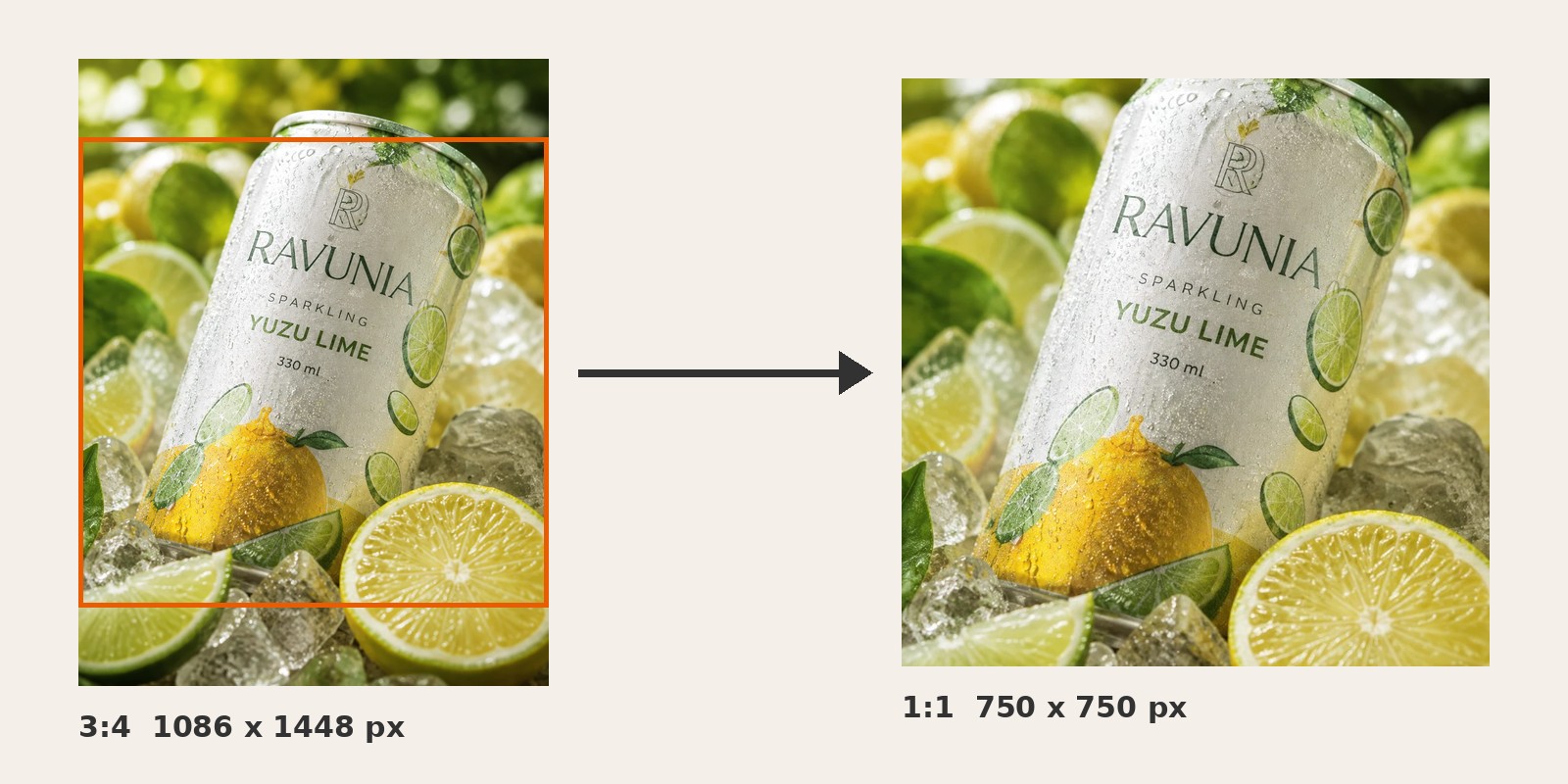
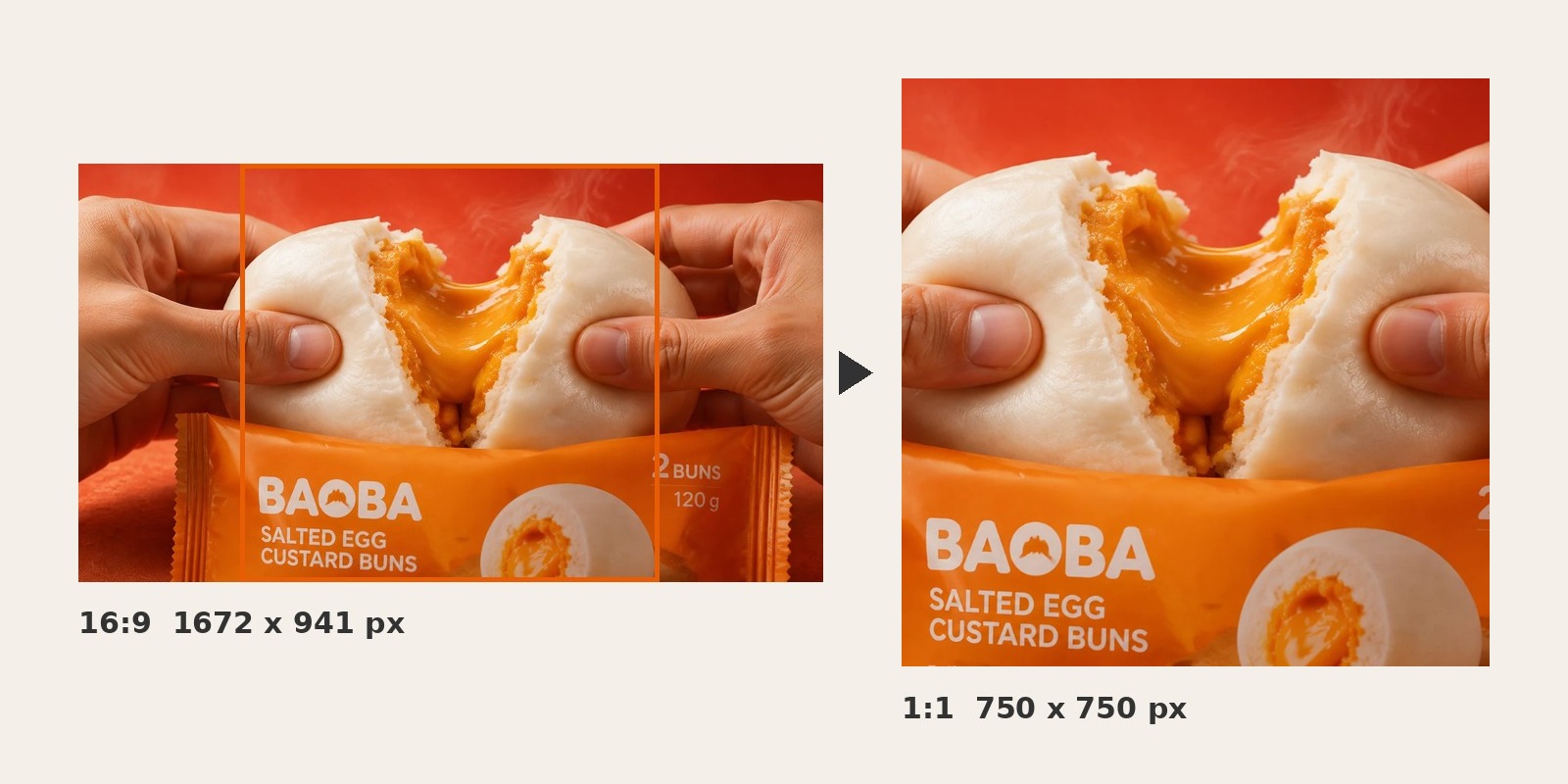
A 3:4 vertical photo cropped to 1:1 in the middle keeps 75% of its height, a 16:9 horizontal photo keeps 56% of its width, and a 9:16 vertical photo keeps 56% of its height. The rest is cut away. Grab says 1:1 but does not say where the app cuts a photo that is not square, so you should choose the cut yourself.
We cropped four GenLabs sample images to 750 x 750 with our image resizer ("Fit mode" set to "Fill and crop") on 30 Sep 2026. This mode always cuts from the centre. The results are JPG files of 90-155 KB.
| Sample image | Original | Part kept (the centre square) | 750 x 750 file | What was lost |
|---|---|---|---|---|
| Drink can on ice (vertical 3:4) | 1086 x 1448 | 75.0% of the height; 12.5% cut from top and bottom | 155 KB | The top rim of the can is clipped a little; ice and fruit at the bottom edge are cut; the name and lettering on the can are whole |
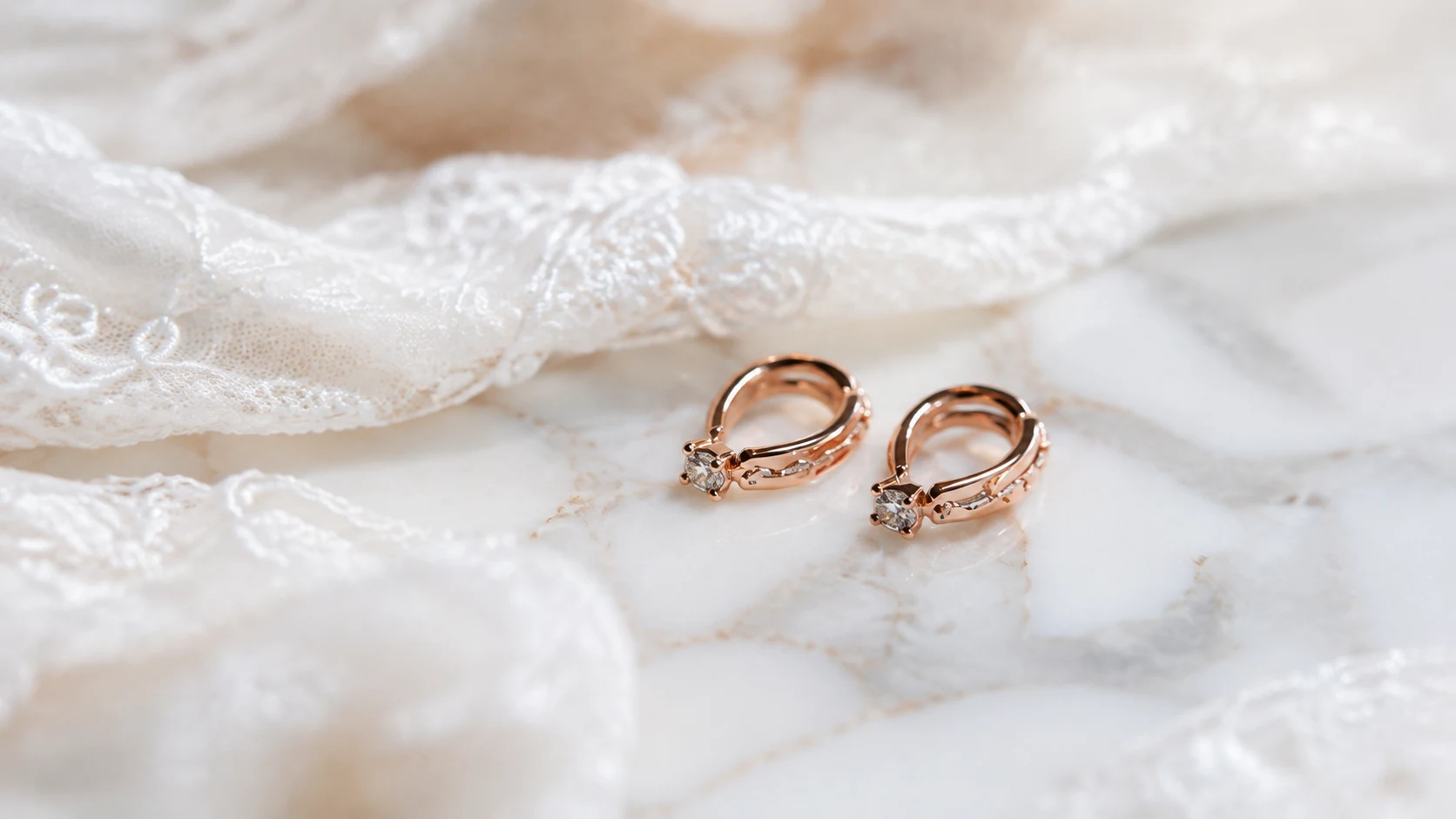
| A steamed bun pulled apart to show the filling (horizontal 16:9) | 1672 x 941 | 56.3% of the width; 21.9% cut from each side | 90 KB | Both hands are cut at the left and right edges, both ends of the package are cut, and of "2 BUNS 120 g" at the right end only the "2" is left at the edge; the brand and product name on the package are whole |
| Coconut jelly cup with spoon (vertical 3:4) | 1086 x 1448 | 75.0% of the height | 96 KB | The cup and label are whole; the spoon handle is cut at the right edge, as in the original |
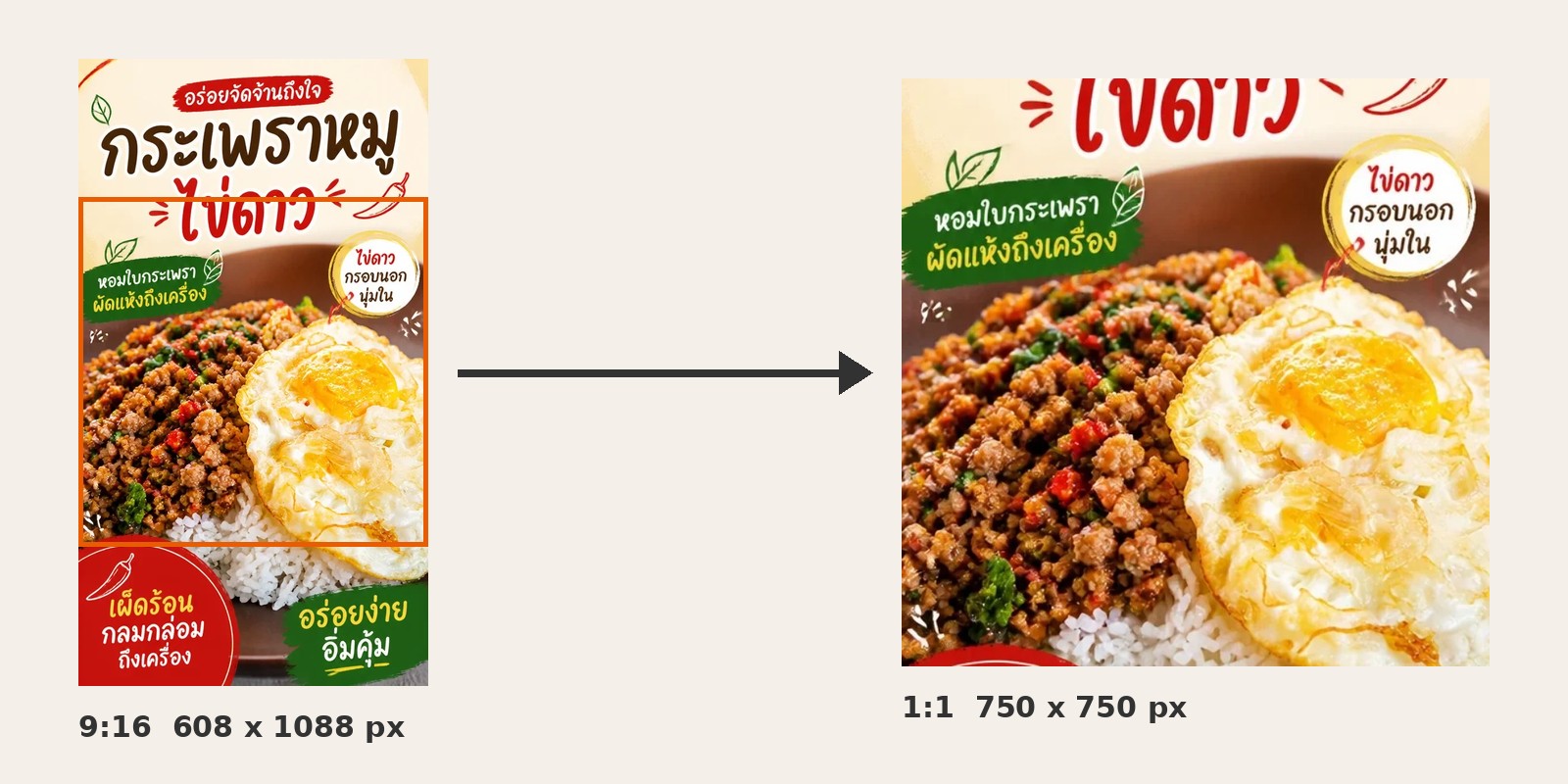
| Basil pork and fried egg poster (vertical 9:16) | 608 x 1088 | 55.9% of the height; 22.1% cut from top and bottom | 149 KB | Of the poster's 7 lettering groups, 4 are gone (the headline "อร่อยจัดจ้านถึงใจ", roughly "bold and tasty"; the dish name "กระเพราหมู", basil pork; and two badges at the bottom), 1 is cut by the top edge (the large "ไข่ดาว", fried egg), and 2 are whole (the green banner at upper left and the round badge at upper right) |
Reading note: the file sizes and percentages are computed from the files the tool made. The "What was lost" column is read from the cropped image against the original.
Three things to notice:
- A 3:4 photo cropped to a square does not have to be enlarged, because the short side of 1086 pixels shrinks to 750 (scale 0.69). The 16:9 photo does not have to be enlarged either (short side 941, scale 0.80).
- A photo that is too small has to be enlarged. The poster is only 608 pixels wide, under 750, so it is enlarged 1.23 times to fill 750. Check that the short side of your photo is at least 750 pixels before you crop.
- A picture with lettering on it must not be cropped into a menu photo. The sample poster lost more than half of its lettering (section 5).
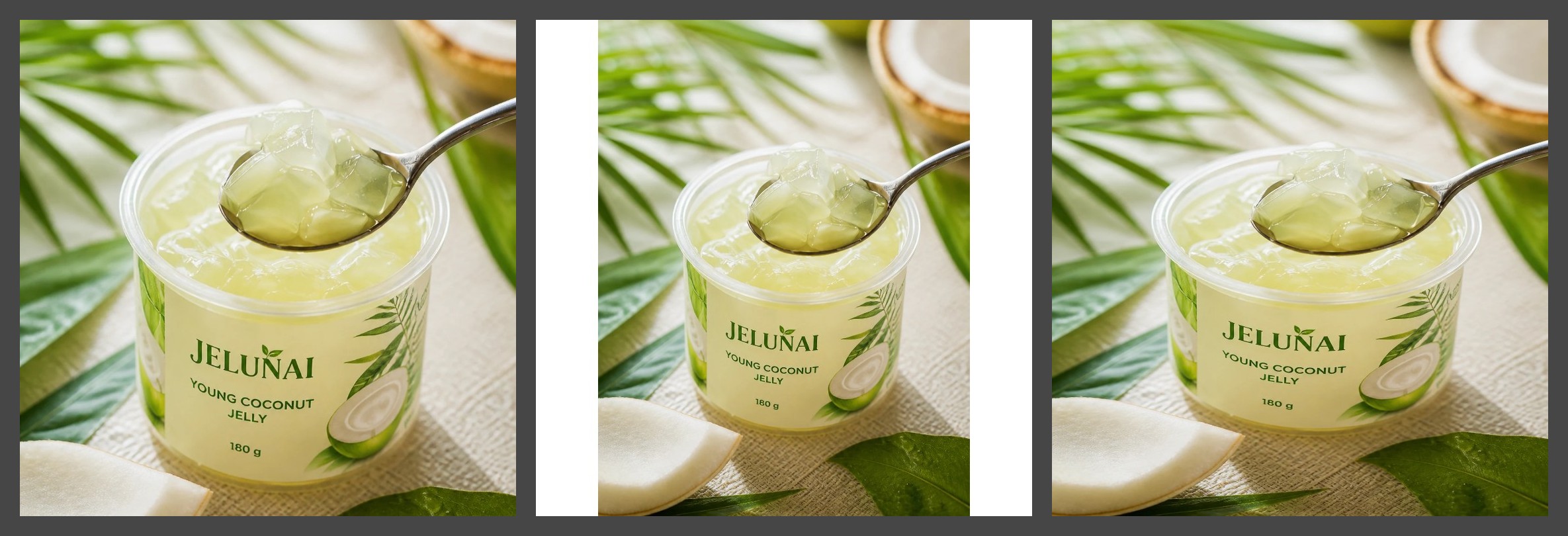
The "Fit mode" (วิธีจัดภาพ) field of the resizer has three choices, and they give very different results. We tried each once on the jelly image (3:4, 1086 x 1448) at 750 x 750:
| Mode in the tool | What it does | Measured result | Fine for a menu photo? |
|---|---|---|---|
| Fill and crop (เต็มเฟรม ครอปอัตโนมัติ) | Crops from the centre to fill the square | Keeps 75% of the height; 96 KB | Yes, if the dish is in the middle |
| Fit with padding (ไม่ครอป เพิ่มขอบ) | Shrinks the whole photo to fit and adds white bands at the sides | The photo is 562 pixels wide; the white bands total about 188 pixels (25% of the width); 89 KB | Yes, but the dish is smaller and there are white bands |
| Stretch exactly (ยืดให้พอดีเป๊ะ) | Stretches the photo to fill 750 x 750 | The photo is 1.33 times wider relative to its height; 105 KB | No, the dish is distorted |
The resizer's crop mode cuts from the centre only and you cannot drag the frame. If your dish is not in the middle, use the image cropper: choose "กำหนดเอง" (Custom), type 750 wide and 750 high, and drag the frame over the dish.
Make the menu photo step by step: shoot, crop, check, upload
One menu photo takes five steps, and there is a four-point check before you upload.
- Shoot the real dish. Photograph the dish the customer will get. LINE MAN writes that a good menu photo is "อาหารตรงปก" (the food matches the picture). Use 45 degrees for almost every dish, a top view for pizza and crepes, eye level (0 degrees) for drinks and cakes. Phone-shooting detail is in how to take product photos with a phone.
- Put the dish in the middle with space around it. Wongnai for Business suggests the dish should cover about 80% of the picture. If the dish fills a vertical frame, a square crop will eat into it. If your camera app has a 1:1 ratio option, shoot in 1:1 so you see the final frame while you shoot.
- Crop to 750 x 750 and save as JPG. Use the image cropper: choose "กำหนดเอง" (Custom), type 750 and 750, drag the frame over the whole dish, and download the JPG. The image resizer we tested above also makes 750 x 750: untick the two ready-made sizes that are ticked (1:1 Square and Story / Reels), type 750 in "Custom width" and in "Custom height", set "Fit mode" to "Fill and crop", choose JPG as the output, and press "Resize Image". (On the Thai page of the tool the labels are กว้างเอง, สูงเอง, วิธีจัดภาพ and ปรับขนาดรูป.) Both tools are free, need no sign-up, and the file stays on your device. For Grab, name the file after the item in the menu.
- Run the four checks (below).
- Upload in the app. For Grab use the GrabMerchant app or the GrabMerchant Portal. For LINE MAN use the Wongnai Merchant App: tap "เมนู" (Menu) on the home screen, tap "จัดการเมนู/สินค้า +" (Manage menu/products), choose "เพิ่มเมนูใหม่" (Add new menu), as in LINE MAN's how to create a menu page. Grab writes that every menu update request is reviewed and approved by Grab.
The four checks before you upload. Open the 750 x 750 file and answer each one. If you cannot answer all four, crop again.
| # | Check | How to check | From the rules of |
|---|---|---|---|
| 1 | The whole dish is in the middle | The edge of the plate, glass or can is not cut, and there is space around it | Grab: the item centred, not off to the side |
| 2 | No lettering, no logo, nothing from another brand | Cover all the lettering and badges with your hand. If together they take more than 30% of the picture (nearly a third), it is a post image, not a menu photo | Grab: text or other images at most 30%, no other brands. LINE MAN: no text covering the food |
| 3 | JPG, 750 x 750, at most 2 MB | Read the size the tool shows after you save (ours were 90-155 KB) | Grab: the edit page (5 MB) and the bulk-update page (2 MB) |
| 4 | The dish in the photo is the dish the customer receives | Compare the photo with the plate that leaves your kitchen | LINE MAN: อาหารตรงปก |
Product image sizes for Shopee, Lazada, TikTok Shop, Facebook, Instagram and LINE are in product image sizes for every platform, 2026. That table has no Grab or LINE MAN row.
Images made with GenLabs: which is a menu photo and which is a post image
A menu photo is one dish in the middle with no lettering on the picture. A picture with a headline and badges is a post image. The basil pork poster below is a sample made with GenLabs. It has 7 lettering groups (headline, dish name and badges) on the picture, which suits a Facebook or Instagram post but not a menu photo: Grab writes that text on the picture must stay within 30% and its general guidance says no distracting text or emoji, and when the poster is cropped to 1:1 the lettering is cut.
In GenLabs you upload a phone photo of the dish, pick a direction, and GenLabs writes the instructions for you, so you write none. You get finished images, you can resize for a channel, and you can schedule posts to TikTok, Instagram and Facebook. For the menu photo in a delivery app, use the real dish you photographed. The post that tells customers about a new menu item can be made from the same photo. See the whole set of food and drink images made with GenLabs.
Limits to know
- We have not uploaded a photo into a real shop in either app. Grab Merchant and the Wongnai Merchant App need a login. We read the help pages and did not try the crop in the apps, so we do not know where an app cuts a photo that is not 1:1, or how large it shows a photo in the menu list.
- Grab's numbers have no printed date, and two pages disagree (5 MB against 2 MB). If the app shows another number when you pick a photo, follow the app.
- The menu photo size for LINE MAN is our suggestion, not a rule LINE MAN writes, and we read only the text of its pages, not the screenshots embedded in them.
- The examples on this page are packaged food and drink and one basil pork poster made with GenLabs, not menu photos of a real shop. The result for your dish depends on the photo you take and the crop you choose.
- A menu photo must show the dish the customer really gets. The bun with the running filling and the can on ice above are ad pictures, not how every dish you send will look. Check every piece of lettering on the picture before you use it.
- The resize tool is free 10 times a day, and so is the crop tool. It crops rectangles only, no circles.
Frequently Asked Questions
What size is a GrabFood menu photo?
A menu item photo needs a 1:1 ratio and a minimum of 750 x 750 pixels. Grab's help page suggests saving it as a JPG at 750 x 750, up to 5 MB. The list photo uses the same numbers; the store (banner) photo is 9:5, at least 1350 x 750 pixels (read 30 Sep 2026).
What size is a LINE MAN menu photo?
LINE MAN does not state a menu photo size on the official pages we read on 30 Sep 2026. The only numbers are the shop cover, suggested at 1200 x 675 pixels, ratio 16:9 (Wongnai for Business, 12 Oct 2021), and the profile picture, which can be set as 1:1. Our suggestion for a menu photo is a 1:1 JPG at 750 x 750 pixels, Grab's rule, then check in the app that the whole dish shows.
Does a Grab menu photo have to be a JPG, and how many MB can it be?
Grab's menu edit page says JPG, up to 5 MB. Its bulk-update page says .png or .jpg only, up to 2 MB per image. A JPG under 2 MB passes both pages. Our 750 x 750 crops came out at 90-155 KB.
Can I put lettering, a logo or a price on a menu photo?
Grab says text or other images may take no more than 30% of the picture, and its general guidance says to make sure there is no distracting text or emojis in the photo (the Thai page says no text or emoji), food only. LINE MAN says no text should cover the food. The safe choice is no lettering on a menu photo, with the price and the name in the app's own fields. A picture with a headline and badges is a post image.
My photo is vertical or horizontal. How do I crop it to a square without cutting the dish?
A centre crop of 3:4 keeps 75% of the height, of 16:9 keeps 56% of the width, and of 9:16 keeps 56% of the height. Put the dish in the middle with space around it when you shoot, then drag the frame yourself in the image cropper. The resizer's automatic crop cuts from the centre only, so check that the edge of the dish is not cut.
How much can GenLabs do for GrabFood and LINE MAN menu photos, and what does it cost?
GenLabs makes images from your dish photo and can resize an image for a channel, but it does not send photos to GrabFood or LINE MAN. Its scheduled posting works for TikTok, Instagram and Facebook. You upload the menu photo yourself in GrabMerchant and the Wongnai Merchant App. For the crop to 750 x 750, use our free crop or resize tool, no sign-up. A new GenLabs signup gets 10 trial credits to try images; one standard image uses 1 credit. Monthly plans start at Startup ฿599 a month with 80 credits. See all plans on the pricing page.