Blur a Photo Background, Free, No Sign-up
Blur the background of a product photo and keep the product sharp
Used today -/-
AI is blurring the background, about 10 seconds
A PNG at the same size as your photo
Background blurred. What you have is still the photo you took. Send the product photo to GenLabs and get product images, ads and posts as a set, a set in 2 minutes.
Try it on your own product photoYou can blur a product photo's background on this page, free, 3 times a day, with no sign-up. Pick a JPG, PNG or WebP up to 10 MB, wait about 10 seconds (9.1 seconds in our run) and you get a PNG at the same size as your photo. The product stays as sharp as you shot it, and the background is blurred. This page blurs the background only, not the whole photo, and it has no blur-strength control. The AI decides for itself what the product is. If you want a white background or a new scene instead of a blur, see the last section of this page.
Blur a product photo's background in 4 steps
From upload to result takes about 10 seconds. It took 9.1 seconds in our run, and when we sent one PNG, one JPG and one WebP each took 8-9 seconds. There is nothing to install.
- Upload the photo. Drag it in or pick a JPG, PNG or WebP up to 10 MB, one at a time.
- Wait about 10 seconds. The AI decides what the product is and blurs the rest.
- Compare the original with the result. Check that the product's edge and the label text are still sharp. If the AI picked something that is not the product, upload a new photo where the product sits in the middle of the frame and apart from other things (another upload counts as another use).
- Press Download PNG. The file is called genlabs-blur-background.png.
There is no blur-strength slider: the blur is the same level on every photo. Your photo is sent to GenLabs' server to be processed.
The file you get: how big, and what type?
You get a PNG with the same pixel size as the photo you sent, not shrunk and not enlarged. If what you want is to blur a photo ("เบลอรูป"), know first that this page blurs the background only, and the product is not blurred.
| The photo you sent | The file you get | |
|---|---|---|
| File type | JPG | PNG |
| Pixel size | 1086 × 1448 | 1086 × 1448 |
| File size | 0.31 MB (314,506 bytes) | 1.44 MB (1,443,825 bytes) |
The file is always a PNG, so it is bigger than a JPG original: about 4.6 times bigger for this photo. It is a full picture, not a transparent PNG (every pixel is opaque). If your photo is a phone file several thousand pixels wide, the PNG will be larger still; we have not tried a photo that big. If the file is too big for the shop you upload to, convert it to JPG first with the image converter, then reduce it with the image compressor, because a PNG photo does not shrink down to 100KB, 200KB or 500KB.
How sharp does the product stay, and what gets blurred?
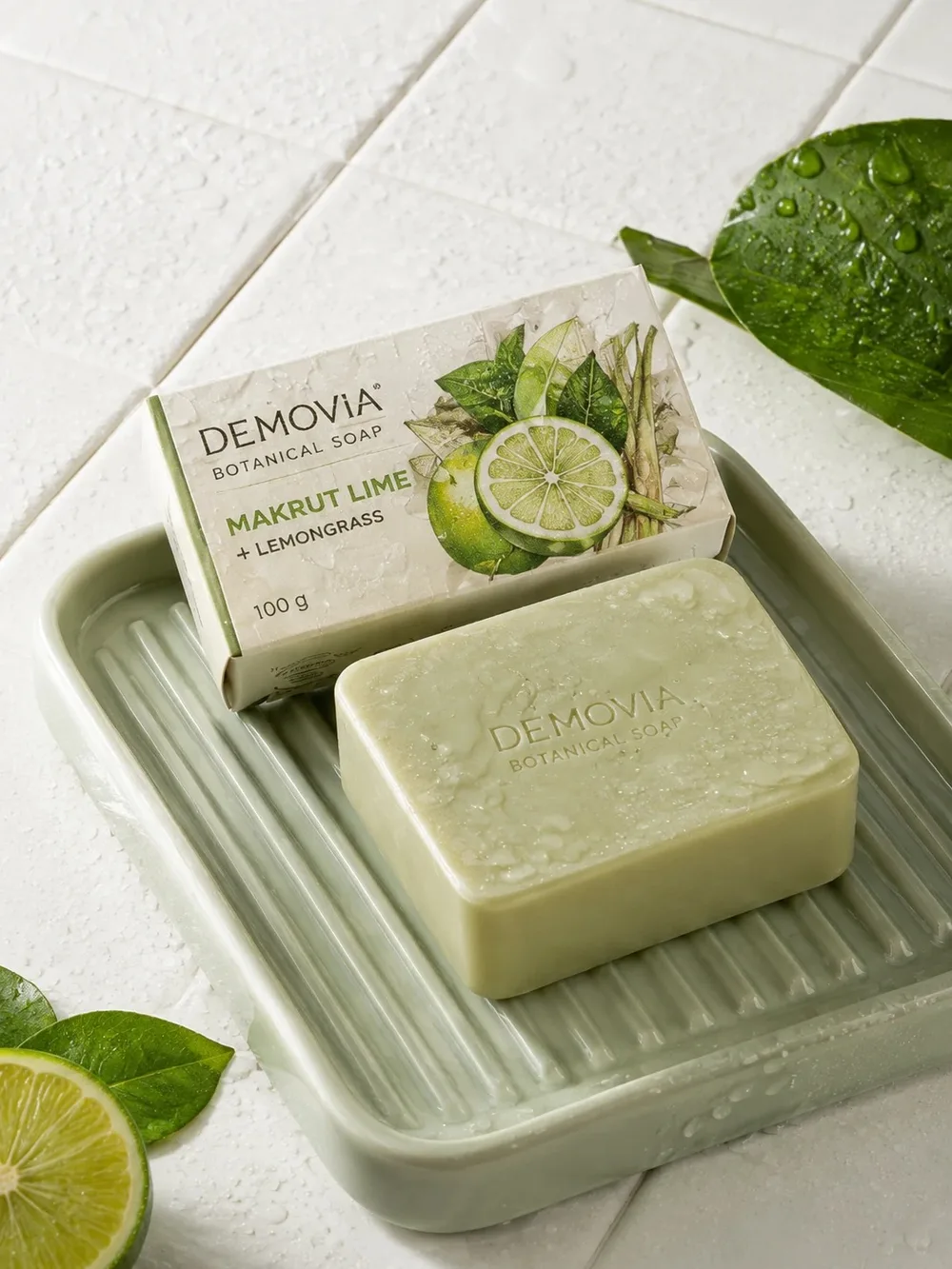
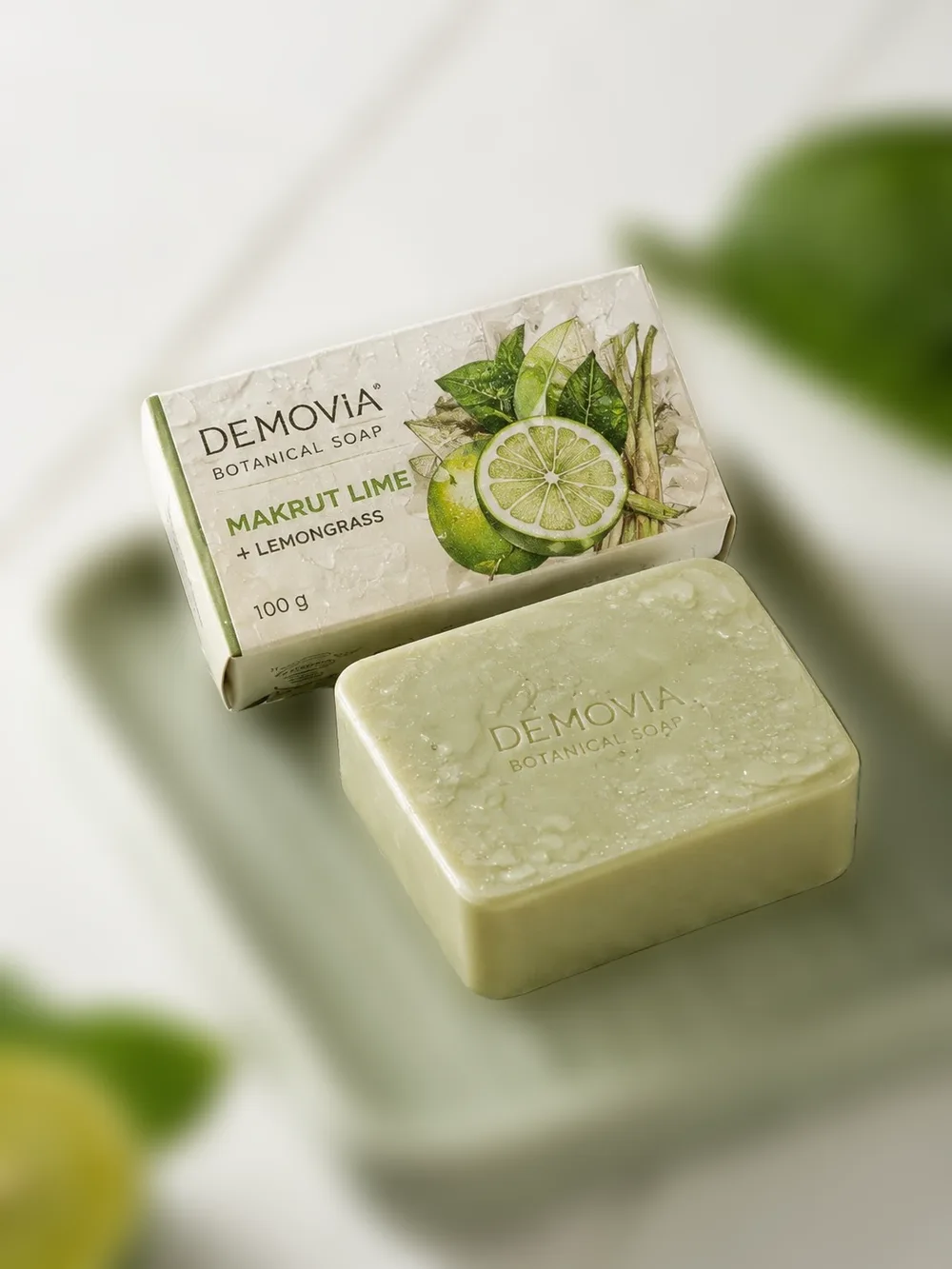
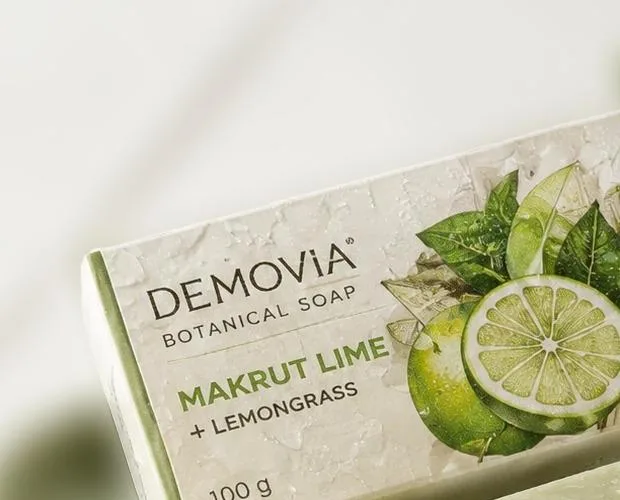
In the photo we tried, the soap box and the soap bar stayed sharp, and all the lettering on the label is readable. The ceramic dish, the tiles, the lime and the leaves were blurred: the tile lines became soft bands and the leaf a green smudge. The photo is a soap on a dish and white tiles that we made in GenLabs (1086 × 1448 pixels).
The product is not redrawn: it uses the pixels of the original. We measured a rectangular patch of 480 × 300 pixels on the soap bar and compared the original with the result: they differ by 0.14 out of 255 per colour on average, which is almost nothing. A patch in the top-left corner, which is background, differs by 2.5 out of 255 per colour on average.
Note that the AI chose the box and the soap bar as the product, not the dish the soap sits on, so the dish was blurred too.
When the result may not suit you: what this tool does not do
This tool blurs the background of a photo you already have. It does not adjust the product. Six things to know before you use it.
- You cannot adjust the blur. There is no slider, and every photo gets the same level. For a lighter or a stronger blur you need another photo editor.
- The AI decides for itself what the product is. If a hand holds the product, or a dish sits under it, that part may be blurred or may be kept sharp. In our soap photo the dish was blurred. If the result is not what you want, shoot again with the product in the middle and apart from other things.
- A busy photo where the product touches clutter may get soft edges. If the product sits right against things of a similar colour or shape, its edge may not be crisp. Compare the product's edge with your original before you use it. We tried one photo where the product's edge is clearly separate from the background, so we have not tested this case.
- It does not change the background. After the blur, the clutter behind the product still shows as soft patches of colour. For a white or picked-colour background use change background. For a transparent PNG use the background remover.
- PNG only. The file can be large; convert it to JPG with the image converter, then reduce it with the image compressor if you need to.
- One photo at a time, 3 a day, counted together with the background remover and change background (one shared counter), resetting at midnight Thailand time.
We have not tested it on photos of people, ID photos or a hand holding the product.
When a blur is not enough for a shop-ready product photo
A blur hides the clutter behind the product, but it does not change the light, the scene or the angle of the photo. For a plain white background to list in a shop, use change background, also free. If what you need is product images for your shop, your posts or your ads, there is another way. Bring one product photo (a phone photo is fine) and pick a direction. GenLabs writes the prompts, so you do not have to. You get a set of images in 2 minutes and can schedule posts to TikTok, Instagram and Facebook from one place. 700+ Thai businesses have paid for GenLabs.
Try it on your own product photoFrequently Asked Questions
How many free background blurs a day, and do I need to sign up?
3 free uses a day, with no sign-up, counted together with the background remover and change background (one shared counter). The counter on the page shows how many you have used. One use is one photo uploaded. After 3 uses, come back after midnight Thailand time.
What is the difference between blurring a photo and blurring its background? Can this page blur the whole photo?
This page blurs the background only. The product stays as sharp as you shot it. It does not blur the whole photo, and it does not blur a spot you choose, because the AI decides for itself what the product is. If you need to blur the whole photo or one spot, this page cannot do it.
Can I make the blur stronger or lighter?
No. This tool has no blur slider, and every photo gets the same level. In the soap photo we tried, the tile lines became soft bands and the leaf a green smudge. For a lighter or stronger blur you need another photo editor.
What file do I get, and how big is it?
A PNG called genlabs-blur-background.png at the same pixel size as the photo you sent. The 1086 × 1448 soap photo gave a 1086 × 1448 pixel PNG of 1.44 MB (the JPG original was 0.31 MB). If the file is too big for the shop, convert it to JPG at https://genlabs.in.th/en/tools/image-converter, then shrink it at https://genlabs.in.th/en/tools/image-compressor
Why did part of my product get blurred?
Because the AI decides for itself what the product is. A hand holding the product, or a dish under it, may be blurred or may be kept sharp. In our soap photo the AI picked the box and the soap bar, so the dish under them was blurred. If the result is not what you want, shoot again with the product in the middle and apart from other things. There is no control to choose what is kept.
By Sway, CEO & Founder of GenLabs · Tool tested on 5 October 2026